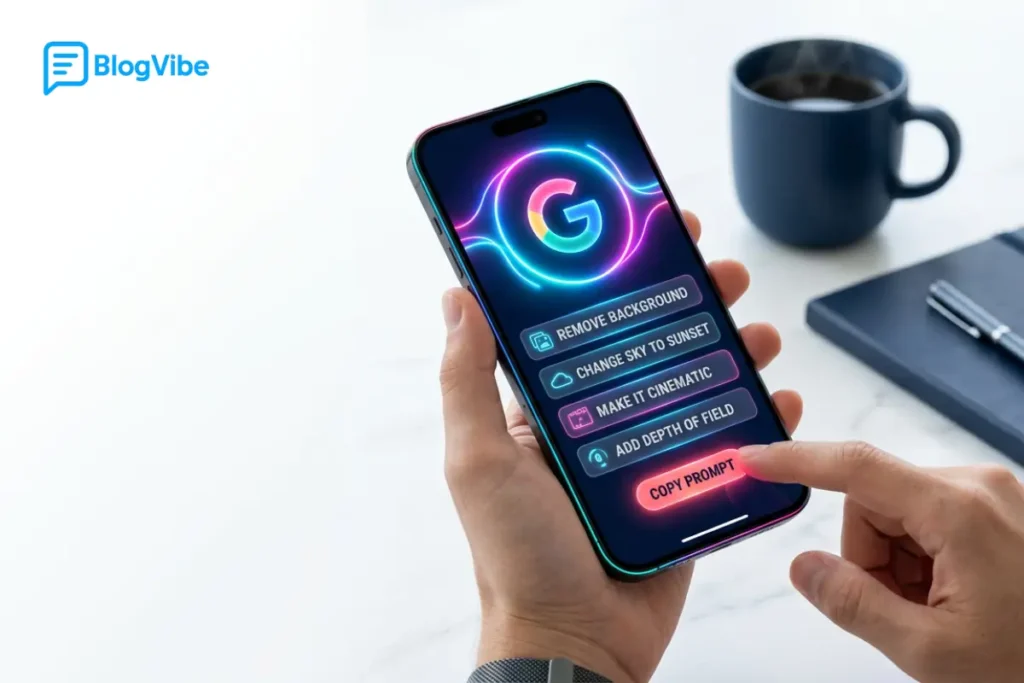
Gemini AI: Artificial Intelligence has transformed the way people create digital content. Today, anyone can generate professional images in seconds without advanced design skills. One of the most powerful tools for this is Gemini AI, a smart AI platform developed by Google that can generate images, text, and creative content through simple prompts.
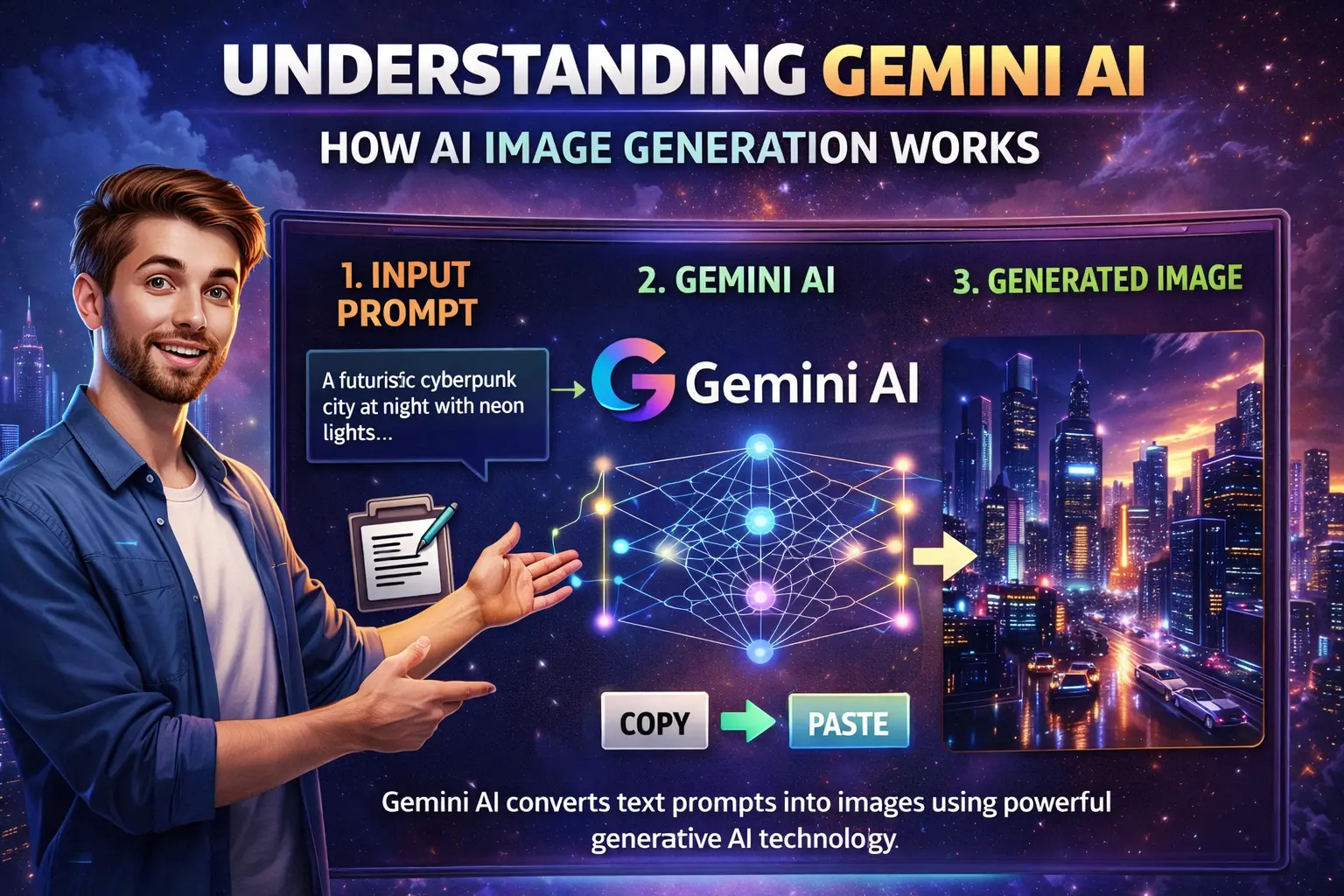
In this beginner-friendly guide, you will learn how to create AI photos with Gemini AI using the copy-paste prompt method. This technique is perfect for beginners because you don’t need to write complex prompts—you simply copy a ready-made prompt and paste it into Gemini.
By the end of this article, you will understand how Gemini works, how to generate high-quality images instantly, and how to create 3D-style AI images with simple instructions.
What is Gemini AI?
Gemini AI is an advanced generative AI model created by Google that can understand text instructions and convert them into different forms of content such as:
- AI-generated images
- Text and articles
- Code
- Design concepts
- Visual illustrations
Unlike traditional image editing software, Gemini allows users to describe what they want and let the AI create it automatically.
For example, instead of designing a sunset image manually, you can simply write:
“Create a cinematic sunset over a mountain lake with golden reflections.”
Within seconds, Gemini generates the image.
Why Use Gemini AI for Image Creation?
There are several reasons why creators, bloggers, and marketers are using Gemini AI for generating photos.
1. Beginner Friendly
You don’t need design experience. Anyone can generate professional visuals.
2. Fast Image Creation
AI images can be generated in a few seconds.
3. Free and Accessible
Gemini is available online and works on most devices.
4. High-Quality Output
It can generate cinematic, realistic, and artistic images.
5. Perfect for Content Creators
Bloggers, YouTubers, and social media marketers can quickly create unique visuals.
How to Create AI Photos with Gemini AI (Copy-Paste Method)
The easiest way to create images is the copy-paste prompt technique. Instead of writing prompts from scratch, you simply paste a prepared prompt.
Follow these simple steps.
Step 1: Open Gemini AI
First, open the official Gemini website.
Log in using your Google account and access the main chat interface.
Step 2: Find or Create an Image Prompt
An AI prompt is simply a description of the image you want.
Example prompt:
“Create a cinematic photo of a futuristic city at night with neon lights, flying cars, and a cyberpunk atmosphere, ultra realistic, 4K quality.”
You can copy this prompt and paste it directly into Gemini.
This is why many beginners prefer the Gemini AI image generator tutorial using the copy-paste prompt method, because it saves time and effort.
Step 3: Paste the Prompt in Gemini
After copying the prompt:
- Paste it into the Gemini chat box
- Press enter
- Wait a few seconds
Gemini will process the prompt and generate the image.
Step 4: Review the Generated Image
Once the AI creates the image, you can:
- Download it
- Modify the prompt
- Ask Gemini to improve the image
Example:
“Make the image more cinematic with dramatic lighting.”
This allows you to refine the result.
Beginner Guide: Create Stunning Photos with Gemini AI Copy-Paste Technique
If you want better images, follow these simple prompt writing tips.
1. Add Image Style
Mention the style of the image.
Examples:
- cinematic
- realistic
- anime
- 3D render
- digital art
Example prompt:
“A cinematic portrait of a warrior in golden armor standing on a mountain, dramatic lighting, ultra realistic.”
2. Mention Lighting
Lighting improves image quality.
Examples:
- soft lighting
- sunset lighting
- neon lighting
- dramatic lighting
3. Add Quality Details
Add terms like:
- 4K resolution
- ultra detailed
- professional photography
Example prompt:
“A professional 4K photograph of a luxury car parked in front of a futuristic building, sunset lighting.”
How to Generate AI Photos in Seconds with Gemini AI
One of the biggest advantages of Gemini AI is speed. The AI can generate visuals almost instantly.
Here is a quick example.
Prompt:
“A majestic lion sitting on a rock in the African savannah during sunset, cinematic lighting, ultra realistic.”
Within seconds, Gemini produces a professional looking image.
This method is commonly used by content creators who need fast visuals for blogs, social media, and YouTube thumbnails.
How to Prompt Gemini for Images
Prompting is the most important skill when using Gemini AI.
A good prompt usually contains three parts:
1. Subject
What the image is about.
Example:
- a futuristic city
- a dragon
- a mountain landscape
2. Style
How the image should look.
Examples:
- realistic
- 3D render
- anime style
3. Quality Details
Extra details that improve the image.
Examples:
- cinematic lighting
- ultra detailed
- 4K resolution
Example of a strong prompt:
“A 3D render of a futuristic robot standing in a neon cyberpunk city, cinematic lighting, ultra detailed, 4K.”
How to Create a Gemini AI Photo 3D Model
Many users want to create 3D style images using Gemini AI.
To do this, include 3D keywords in the prompt.
Example prompt:
“A 3D model of a futuristic robot soldier with glowing blue armor, studio lighting, ultra realistic 3D render.”
You can also add terms like:
- Blender render
- Pixar style
- Unreal Engine render
Example:
“A Pixar style 3D character of a young explorer with a backpack standing in a jungle.”
These prompts help Gemini produce 3D-looking AI images.
Generate Images with Gemini Using Generative AI Technology
Gemini uses generative AI technology that understands text instructions and converts them into visual outputs.
This technology is also used in advanced developer platforms like Vertex AI, where developers build AI applications and generate images using large machine learning models.
For everyday users, Gemini provides a simplified interface so anyone can generate images without coding knowledge.
Best Copy-Paste Prompts for Gemini AI
Here are some ready-to-use prompts you can copy and paste.
Prompt 1 – Cinematic Landscape
“A cinematic landscape of snow mountains during sunrise with golden light reflecting on a frozen lake, ultra realistic, 4K.”
Prompt 2 – Fantasy Scene
“A fantasy castle floating in the sky above clouds with magical glowing lights, epic cinematic style.”
Prompt 3 – Cyberpunk City
“A futuristic cyberpunk city at night with neon lights, flying cars and rain reflections on the street, ultra detailed.”
Prompt 4 – Portrait Photography
“A professional portrait of a young entrepreneur in modern office lighting, realistic photography style.”
These prompts can generate stunning visuals instantly.
Common Mistakes Beginners Should Avoid(AI Photos)
Even though Gemini is easy to use, beginners sometimes make mistakes.
1. Writing Very Short Prompts
Example:
“Create a city.”
This produces generic images.
Instead write:
“A futuristic cyberpunk city at night with neon lights and flying vehicles.”
2. Using Too Many Keywords
Keyword stuffing in prompts can confuse the AI.
Keep prompts clear and descriptive.
3. Ignoring Style Instructions
If you want a specific look, mention it.
Example:
- cinematic
- anime
- realistic
Who Should Use Gemini AI Image Generation?(AI Photos)
Gemini AI is useful for many professionals.
Bloggers
Create images for blog posts.
YouTubers
Generate thumbnails and visual scenes.
Social Media Creators
Design unique posts and graphics.
Digital Marketers
Create marketing visuals quickly.
Students(AI Photos)
Use AI visuals for presentations and projects.
The Future of AI Image Creation
AI image generation is improving rapidly. Tools like Gemini are making professional design accessible to everyone.
In the future, we can expect:
- more realistic AI visuals
- video generation from prompts
- 3D animation from text
- personalized AI design assistants
As generative AI evolves, learning how to prompt AI tools effectively will become a valuable digital skill.
Conclusion(AI Photos)
Creating images with Gemini AI is one of the easiest ways to generate high-quality visuals in 2026. With the simple copy-paste prompt method, even beginners can create professional images in seconds.
All you need to do is:
- Open Gemini AI
- Copy a detailed prompt
- Paste it into the chat
- Let the AI generate the image
By learning how to write better prompts and adding style details like cinematic lighting or 3D rendering, you can create stunning AI visuals for blogs, marketing, social media, and creative projects.
If you are just starting with AI tools, Gemini is a great place to begin your journey into AI-powered creativity.