
Veo 3.1 Login: AI video generation has moved far beyond simple text-to-video experiments. Today, creators can describe a scene, control camera movement, use reference images, generate audio, and build cinematic sequences without traditional filming equipment. One of the most notable tools in this space is Google Veo 3.1 Login.
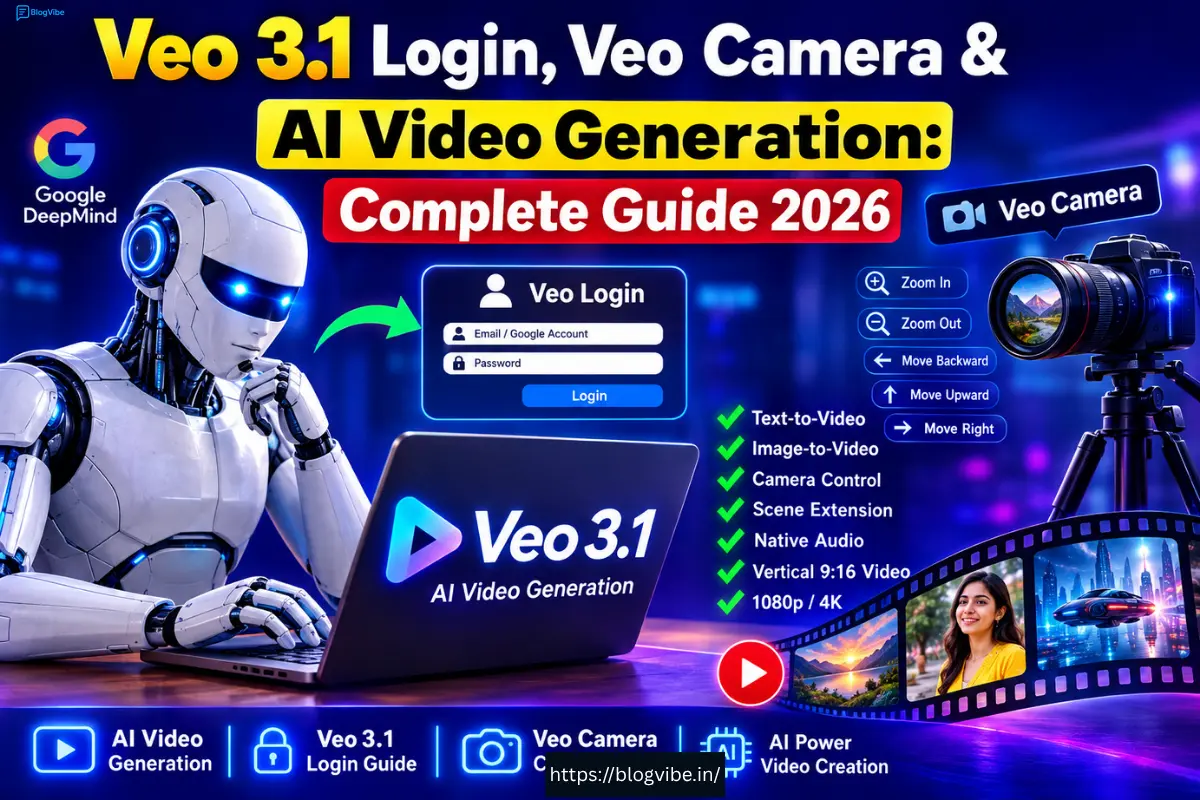
Veo 3.1 is Google DeepMind’s latest Veo video-generation model, designed to create realistic videos with audio while providing greater control over characters, objects, scenes, and camera movement. Google has also integrated Veo capabilities into products such as Gemini, Flow, Google Vids, the Gemini API, and Vertex AI.
If you are searching for “Veo login,” “Veo Camera,” or “Veo 3.1,” this guide explains what Veo 3.1 is, how you can access it, its major features, camera controls, use cases, limitations, and how beginners can start creating AI videos.
What Is Google Veo 3.1?
Google Veo 3.1 is an advanced generative AI model created by Google DeepMind for video generation. It can transform text descriptions and visual references into video content.
Unlike traditional video editing software, you don’t necessarily need a physical camera, actors, locations, or a complete production crew. Instead, you can describe the scene you want and use reference images when you need additional consistency or control.
Google describes Veo 3.1 as a model focused on greater realism, prompt adherence, consistency, and creative control. It also supports video generation with audio.
For example, you could describe:
“A cinematic shot of a futuristic city at night, rain falling on the streets, a car slowly passing through neon lights, realistic reflections, dramatic camera movement.”
The AI can interpret these instructions and generate a corresponding video.
This makes Veo particularly interesting for YouTube creators, filmmakers, advertisers, social-media creators, educators, and people experimenting with AI storytelling.
Veo 3.1 Login: How to Access Veo
One important thing to understand is that Veo 3.1 Login is a model, rather than a standalone traditional website that simply requires a separate ‘Veo account.’
Depending on the product and availability, users can access Veo through Google’s supported AI experiences, including Gemini and Google Flow. Google also makes Veo available to developers through the Gemini API and to enterprise customers through Vertex AI.
For the easiest experience, users interested in AI filmmaking can look at Google Flow, while casual creators can explore Veo capabilities through supported Gemini experiences.
Basic Login Process
The general process is:
- Open the relevant official Google AI product.
- Sign in with your Google account.
- Check whether Veo video generation is available on your account and plan.
- Open the video-generation feature.
- Enter your prompt.
- Add reference images if supported.
- Generate your video.
- Review and refine the result.
Availability and features can vary depending on your country, Google account, subscription, and the specific product you are using.
Google has expanded Flow availability internationally, although product features can still differ by country.
What Is a Veo Camera?
When people search for “Veo Camera,” they may be referring to Veo’s AI-powered camera controls, rather than a conventional physical camera.
Veo 3.1 can provide control over how a virtual camera frames and moves through a generated scene. Google specifically highlights camera controls such as moving backward, zooming in, moving upward, and moving right.
This is useful because camera movement dramatically affects the feeling of a video.
For example:
Slow dolly-in:
Creates a dramatic or emotional feeling.
Zoom-in:
Can focus attention on a character or object.
Camera pull-back:
Can reveal the surrounding environment.
Camera movement to the side:
Can create a cinematic tracking effect.
Instead of simply saying “make a video,” you can describe the shot and camera movement you want.
Veo 3.1 Camera Controls
One of Veo 3.1’s most useful capabilities is greater control over the shot.
You can describe things such as:
- Camera angle
- Camera movement
- Subject position
- Framing
- Zoom
- Movement direction
- Cinematic composition
- Scene transitions
For example:
Prompt:
“Wide cinematic shot of a lonely astronaut standing on Mars. The camera slowly moves backward while revealing a massive futuristic spaceship behind him. Dust moves naturally in the wind, realistic lighting, cinematic atmosphere.”
The camera instruction helps define not only what appears in the scene but also how the viewer experiences it.
This is particularly useful for creators making short films, advertisements, YouTube videos, music videos, and cinematic Shorts.
Major Features of Veo 3.1
1. Text-to-Video
One of Veo’s core capabilities is turning written descriptions into video.
You can describe:
- People
- Animals
- Landscapes
- Buildings
- Vehicles
- Fantasy worlds
- Product advertisements
- Cinematic scenes
The more specific your prompt is, the more control you can have over the desired result.
2. Image-to-Video
Veo 3.1 can also use images as references for video creation.
This is especially useful when you already have a character, product, location, or visual style that you want to animate.
Google’s updated Ingredients to Video capability is designed to use reference images while maintaining greater consistency in characters and backgrounds.
3. Ingredients to Video
The Ingredients to Video feature lets creators provide reference images for important elements in their scene.
For example, you could provide:
- A character image
- A product image
- A location
- An object
- A style reference
The generated video can then use those references to help maintain consistency.
This can be extremely useful for storytelling because one of the biggest challenges in AI-generated video is keeping characters and objects visually consistent.
4. First and Last Frame
Veo 3.1 also supports workflows where you provide a beginning and ending image.
The model generates the transition between them.
This can be useful for:
- Cinematic transitions
- Transformation videos
- Before-and-after videos
- Fantasy sequences
- Product demonstrations
- Storytelling
Google describes this as a way to create smooth transitions between supplied first and last frames.
5. Scene Extension
Another powerful capability is extending an existing video.
Instead of stopping after the original clip, creators can generate additional content that continues the scene.
Google says Flow’s Extend feature can create longer, connected shots based on the ending of the previous clip.
This can help creators build longer sequences from multiple generated clips.
6. Native Audio
Veo 3.1 is not limited to silent video.
Google introduced richer generated audio with Veo 3.1, including capabilities for dialogue, environmental sounds, and other audio elements depending on the workflow.
This can reduce the need to separately create every sound effect during the initial generation process.
For example, a prompt could describe:
“A busy Indian street market at sunset. Vendors are talking in the background, motorcycles pass through the street, birds are flying overhead, and the main character says, ‘Let’s go.’”
The generated result can incorporate audiovisual elements according to the model’s interpretation.
However, AI-generated dialogue and audio can still contain mistakes, so creators should review every output before publishing.
Vertical Video and YouTube Shorts
For creators who make Shorts, Reels, or other mobile-first videos, one of the most important Veo 3.1 improvements is native vertical video generation.
Google announced support for native 9:16 portrait generation for Ingredients to Video, making it more suitable for mobile platforms such as YouTube Shorts.
This is particularly useful because creators don’t always want to generate a landscape video and crop it afterward.
A vertical prompt could be:
“Vertical 9:16 cinematic video of a young explorer walking through an ancient jungle temple, dramatic sunlight through the trees, realistic dust particles, slow camera tracking, detailed environment, cinematic lighting.”
For your Shorts workflow, specifying 9:16 vertical can help communicate the intended composition when the particular Veo interface supports that format.
Veo 3.1 Resolution
For professional workflows, resolution is another important factor.
Google announced 1080p and 4K upscaling capabilities for Veo 3.1 in certain products and developer workflows. Google notes that 1080p and 4K options are available through Flow, the Gemini API, and Vertex AI, rather than necessarily being available in every Veo experience. (blog.google)
This distinction matters because Veo’s capabilities can differ depending on where you access the model.
How to Write Better Veo 3.1 Prompts
A good Veo prompt should describe more than just the subject.
A useful structure is:
Subject + Environment + Action + Camera + Lighting + Style + Audio
For example:
Basic prompt:
“A man walking in a city.”
This gives the model very little direction.
A more detailed prompt would be:
“A cinematic medium shot of a young man walking through a rainy futuristic city at night. Neon signs reflect on the wet pavement. The camera slowly tracks backward as he walks toward the lens. Soft blue and pink lighting, realistic skin texture, natural movement, shallow depth of field, atmospheric rain sounds and distant traffic.”
The second prompt gives the model substantially more information about the intended shot.
Who Should Use Veo 3.1?
Veo 3.1 can be useful for many types of creators.
YouTube Creators
You can use AI-generated clips for:
- Shorts
- Story videos
- Explainer videos
- What-if videos
- Fact videos
- Cinematic storytelling
Filmmakers
Filmmakers can use Veo for:
- Concept development
- Previsualization
- Storyboarding
- Experimental scenes
- Visual effects concepts
Businesses
Businesses can experiment with:
- Product advertisements
- Social-media campaigns
- Marketing videos
- Concept demonstrations
Educators
Teachers and educational creators can use generated scenes to visually explain historical, scientific, or fictional concepts.
Veo 3.1 Pros and Cons
Pros
- High-quality AI video generation
- Strong prompt understanding
- Audio generation capabilities
- Reference-image workflows
- Camera controls
- First/last-frame generation
- Scene extension
- Vertical video support
- 1080p and 4K options in supported workflows
- Useful for both beginners and professional creators
Cons
- Availability depends on Google’s products and plans
- Features can vary by country
- AI-generated characters may still have inconsistencies
- Complex scenes can produce unexpected results
- Generated dialogue and audio may require review
- Higher-quality generation can consume more resources or credits
Is Veo 3.1 Worth Using in 2026?
If your goal is to experiment with AI video creation, Veo 3.1 is certainly worth considering.
Its combination of video generation, audio, reference images, camera control, scene extension, and vertical video makes it particularly interesting for modern content creators.
The biggest advantage isn’t simply that it can create impressive-looking clips. The more important development is the increasing amount of creative control available to the user.
Google has continued expanding Flow and Veo with additional editing, asset management, camera, and generation capabilities.
For YouTube Shorts creators, the native vertical workflow can also be particularly useful.
Final Verdict
Google Veo 3.1 represents a major step forward in AI-powered video generation. It combines realistic video creation with audio, reference images, camera controls, scene extension, first-and-last-frame generation, and vertical video capabilities.
If you’re searching for Veo 3.1 Login, start with Google’s supported Veo experiences such as Gemini or Flow rather than looking for an unofficial “Veo login” website. For developers, Veo 3.1 is also available through Google’s developer platforms, while enterprise users can access it through Vertex AI. (blog.google)
For beginners, the easiest approach is to start with a simple prompt, experiment with camera movement, then gradually add reference images, audio instructions, and more detailed storytelling.
As AI video technology continues developing, tools like Veo 3.1 are making cinematic video creation accessible to people who may not have expensive cameras, studios, or large production teams.
FAQ(Veo 3.1 Login)
Is Veo 3.1 free?
Access depends on the Google product, account, subscription, and region you are using. Veo capabilities may be offered through different Google products and plans, so availability should be checked in the specific service you intend to use.
Where can I use Veo 3.1?
Google currently provides Veo 3.1 capabilities through experiences including Gemini and Flow, with developer access through the Gemini API and enterprise access through Vertex AI. (blog.google)
Can Veo 3.1 create vertical videos?
Yes. Google announced native vertical 9:16 video generation for supported Veo 3.1 workflows, particularly Ingredients to Video. (blog.google)
Can Veo 3.1 generate audio?
Yes. Veo 3.1 includes generated audio capabilities, although exact features can depend on the product and workflow.
Can I use images with Veo 3.1?
Yes. Veo 3.1 supports image-based workflows such as Ingredients to Video and first/last-frame generation. (Google DeepMind)
Does Veo 3.1 have camera controls?
Yes. Google highlights camera controls that allow creators to direct movements such as zooming, moving backward, moving upward, and moving sideways.
read more:
Wispr Flow 2026: Powerful AI Voice Typing Tool – Features, Pricing & Honest Review