AI photo editing has completely changed the way we improve and transform pictures. You no longer need advanced Photoshop skills to remove unwanted objects, change backgrounds, improve lighting, restore old photos, or create professional-looking portraits.
With the right AI photo editing prompts, tools such as ChatGPT, Gemini, Photoshop and other AI image editors can understand what you want to change and what you want to keep unchanged.
The important thing is to be specific. Instead of saying “make my photo better,” tell the AI exactly what to edit, where to edit it, and which details should remain untouched.
In this guide, you will find 100 AI photo editing prompts for 2026 covering selfies, portraits, backgrounds, products, fashion, old photos, social media images and creative edits.
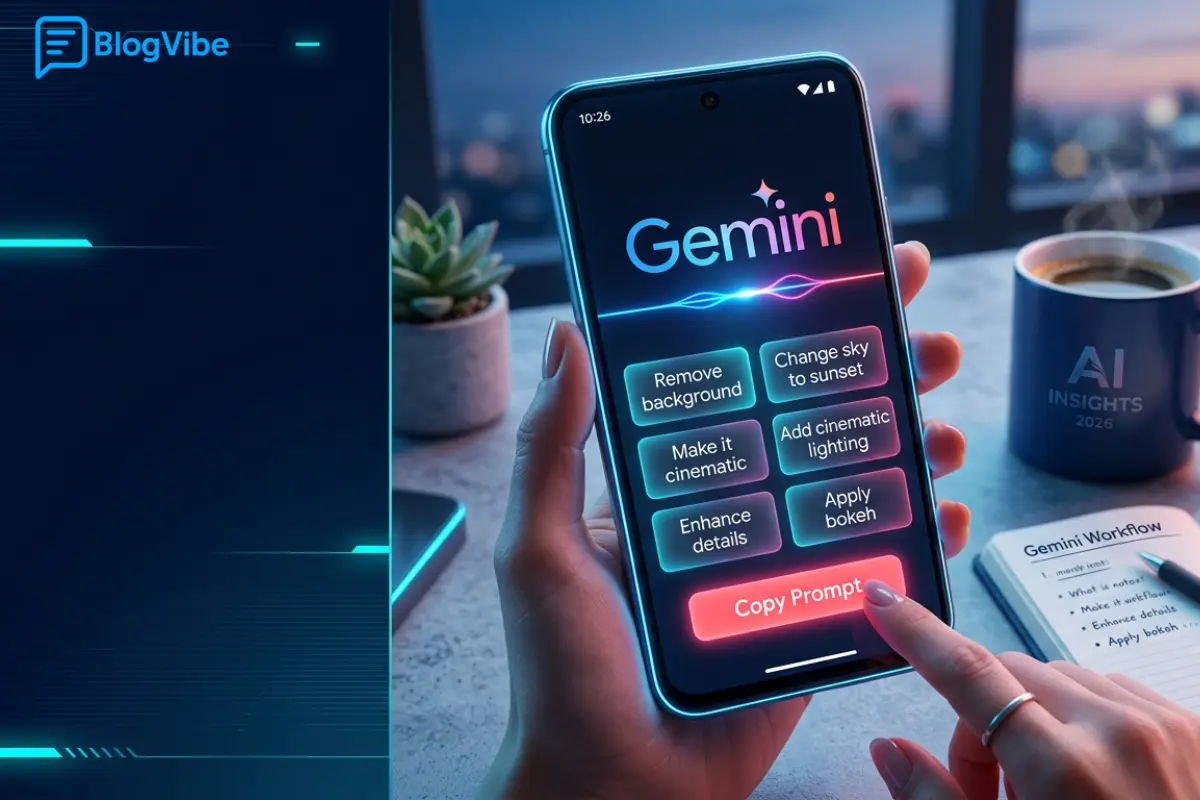
How to Write a Good AI Photo Editing Prompt
A useful prompt normally contains four simple elements:
What to change + what to preserve + how it should look + what not to change.
For example:
“Replace the background with a modern office. Keep the person’s face, hairstyle, clothing and body proportions unchanged. Match the original lighting and perspective and make the result realistic.”
This gives the AI much more information than simply saying “change my background.”
When editing someone’s face, always mention that their identity, facial structure and natural skin texture should remain unchanged.
Get 100 AI Prompts Every Student Should Know
Study, revision, research, notes and exam preparation For 100 ready-to-use AI prompts.
📘 100 AI Prompts Every Student Should Know
Special Price: ₹99
👉 BUY NOW
100 AI Photo Editing Prompts
AI Portrait and Selfie Prompts
- Natural Retouch
Improve the portrait naturally while preserving facial features, skin texture, expression and identity.
- Clear Skin
Remove temporary blemishes while keeping natural pores, freckles and realistic skin texture.
- Bright Eyes
Make the eyes slightly brighter and clearer without changing their natural shape or color.
- Teeth Whitening
Brighten the teeth naturally without creating an artificial white appearance.
- Selfie Enhancement
Improve exposure, sharpness and white balance while keeping the face and appearance natural.
- Professional Portrait
Turn this selfie into a polished professional portrait while preserving identity.
- Remove Face Blemish
Remove the selected blemish and naturally reconstruct the surrounding skin.
- Hair Enhancement
Improve hair detail and reduce flyaway hairs while keeping the original hairstyle.
- Natural Skin Tone
Correct uneven skin tone while preserving natural facial texture.
- Studio Portrait
Give this portrait soft studio lighting and professional clarity without changing facial structure.
Professional Headshot Prompts
- LinkedIn Photo
Create a professional LinkedIn-style headshot with clean lighting and a simple background.
- Business Headshot
Make this image suitable for a corporate profile while preserving the person’s identity.
- Resume Photo
Improve lighting and clarity and create a clean professional background.
- Executive Portrait
Give this portrait a premium executive photography look with subtle studio lighting.
- Speaker Photo
Create a professional speaker profile image with polished lighting and natural retouching.
- Office Background
Replace the background with a modern office while keeping the person unchanged.
- Neutral Background
Replace the background with a simple neutral studio backdrop.
- Team Photo Style
Make the portrait visually consistent with a professional company team photo.
- Corporate Lighting
Add soft professional lighting without changing facial features.
- Professional Color Grade
Apply a clean corporate color grade while keeping natural skin tones.
Background Editing Prompts
- White Background
Replace the background with a clean white studio background and preserve realistic shadows.
- Gray Studio
Create a seamless light-gray studio background while keeping the subject unchanged.
- Luxury Room
Replace the background with an elegant luxury interior matching the original perspective.
- Modern Office
Place the subject inside a realistic modern office with matching lighting.
- Beach Background
Replace the background with a realistic beach and match sunlight and shadows.
- Park Background
Place the subject in a beautiful green park while preserving the original pose.
- Sunset Scene
Create a realistic sunset background with warm natural light.
- Mountain Background
Place the subject in a realistic mountain landscape while matching perspective and lighting.
- City Background
Replace the background with a modern city street while keeping the subject unchanged.
- Clean Background
Remove distracting background elements while preserving the main subject and composition.
Object Removal Prompts
- Remove Person
Remove the selected person from the background and reconstruct the scene naturally.
- Remove Photobomber
Remove the photobomber without changing the main subject.
- Remove Cable
Remove the visible cable and realistically rebuild the surface underneath.
- Remove Trash
Remove unwanted trash and reconstruct the surrounding environment.
- Remove Pole
Remove the pole while preserving the architecture and background.
- Remove Sign
Remove the selected sign and naturally reconstruct the area behind it.
- Remove Unwanted Object
Remove only the selected object and keep everything else unchanged.
- Clean Street
Remove distracting objects from the street while preserving buildings and people.
- Clean Room
Remove unwanted items from the room while maintaining realistic lighting.
- Remove Multiple Distractions
Remove only the specified distracting objects without changing the main composition.
Lighting and Color Prompts
- Fix Dark Photo
Brighten the underexposed image while preserving its original mood.
- Fix Bright Photo
Recover highlights and details from the overexposed areas naturally.
- Correct White Balance
Fix the color cast and restore realistic, balanced colors.
- Golden Hour
Transform the lighting into realistic warm golden-hour sunlight.
- Soft Lighting
Add soft professional lighting with natural highlights and shadows.
- Cinematic Color
Apply a subtle cinematic color grade while keeping skin tones realistic.
- Bright Editorial Look
Give the image a clean bright editorial finish.
- Flash Correction
Reduce harsh flash highlights and balance the shadows naturally.
- Night Photo Enhancement
Improve visibility and reduce noise while preserving the nighttime atmosphere.
- Natural Color Correction
Correct exposure and colors while keeping the original scene realistic.
Old Photo Restoration Prompts
- Restore Old Photo
Restore this old photograph by removing scratches, dust and stains while preserving its original character.
- Repair Damaged Photo
Repair damaged areas using surrounding visual information without changing people’s identities.
- Remove Scratches
Remove scratches while preserving authentic photographic texture.
- Restore Faded Colors
Restore faded colors naturally without making the photo overly saturated.
- Improve Sharpness
Increase clarity without creating artificial edges or halos.
- Reduce Noise
Remove digital noise while preserving fine details.
- Restore Family Photo
Restore this family photograph while keeping every person’s identity and expression unchanged.
- Repair Torn Photo
Reconstruct torn and missing areas while maintaining the original appearance.
- Restore Black-and-White Photo
Improve clarity and contrast while preserving the original black-and-white style.
- Photo Quality Enhancement
Improve overall image quality while maintaining the authentic look of the original photograph.
Crop, Resize and Composition Prompts
- Instagram 4:5
Prepare this image for Instagram in a 4:5 format without cutting important details.
- Instagram Story
Expand this image naturally to a 9:16 vertical format.
- YouTube Thumbnail
Expand and compose this image for a 16:9 YouTube thumbnail while keeping the subject prominent.
- Square Image
Create a balanced 1:1 square version while preserving the main subject.
- Add Left Space
Create clean empty space on the left for adding headline text.
- Add Right Space
Create clean negative space on the right without changing the subject.
- Expand Image
Extend the image beyond its original edges with a realistic continuation of the environment.
- Fix Cropped Hair
Reconstruct the missing hair naturally while preserving the person’s identity.
- Fix Cropped Object
Reconstruct the missing portion of the object using the visible design as reference.
- Improve Composition
Make a minimal crop adjustment to create a more balanced composition.
Product Photo Editing Prompts
- E-commerce Product
Create a clean product image with a simple background and realistic shadow.
- White Product Background
Place the product on a pure white background while preserving its exact shape and branding.
- Product Advertisement
Create a premium commercial product image with professional studio lighting.
- Remove Product Glare
Reduce glare while preserving the product’s material, shape and branding.
- Improve Product Clarity
Increase product clarity without changing labels, colors or design.
- Lifestyle Product
Place the product naturally in a modern lifestyle setting while preserving its proportions.
- Cosmetics Photo
Turn this cosmetics image into a premium beauty campaign photograph.
- Marketplace Image
Prepare the product for an online marketplace with a clean background and centered composition.
- Product Flat Lay
Create a professional flat-lay composition around the product.
- Product Polish
Correct lighting, exposure, color and small distractions without changing the product itself.
Fashion and Beauty Prompts
- Change Outfit
Change the outfit to [outfit] while preserving face, identity, pose and body proportions.
- Change Clothing Color
Change only the clothing color to [color] while preserving fabric texture and design.
- Fashion Editorial
Give the image a high-end fashion editorial appearance while preserving identity.
- Fashion Studio
Place the subject in a professional fashion studio with realistic lighting.
- Streetwear Style
Create a modern streetwear editorial look while preserving the person’s identity.
- Beauty Campaign
Give the portrait a premium beauty campaign finish with soft lighting and subtle retouching.
- Jewelry Enhancement
Improve jewelry clarity and reflections without changing its original design.
- Hairstyle Change
Change the hairstyle to [style] while keeping the person’s face and identity unchanged.
- Add Sunglasses
Add realistic sunglasses matching the face angle, reflections and lighting.
- Remove Accessory
Remove the selected accessory and naturally reconstruct the area underneath.
Travel, Food and Social Media Prompts
- Travel Enhancement
Improve this travel photo with balanced exposure, natural colors and better detail.
- Tourist Removal
Remove distracting background tourists while preserving the main subject and location.
- Sunset Enhancement
Enhance the sunset subtly while keeping the sky and landscape realistic.
- Beach Cleanup
Remove unwanted objects from the beach and naturally reconstruct sand and water.
- City Night Photo
Improve this city-night image by reducing noise and balancing bright lights.
- Cafe Photo
Give this cafe image a premium lifestyle photography look with natural colors.
- Food Photography
Enhance this food photo for a restaurant menu without changing the actual dish.
- Social Media Polish
Optimize this photo for social media with balanced colors, exposure and sharpness.
- Viral Portrait Style
Give this portrait a modern social-media-ready look while keeping the person recognizable and natural.
- Final Professional Edit
Give this image a final professional polish by improving exposure, color, clarity and small distractions while preserving identity, text, logos and realistic details.
Tips for Better AI Photo Editing Results
The quality of an AI edit depends heavily on how clearly you describe the desired result.
First, upload the original image whenever the editing tool supports image uploads. Then explain exactly what you want changed.
Avoid asking for too many major changes in one prompt. For example, changing someone’s clothes, face, background and lighting simultaneously can produce inconsistent results. Making one major edit at a time usually gives you better control.
Also tell the AI what not to change. This is especially important for faces, logos, product labels, clothing patterns and important objects.
For realistic edits, mention details such as lighting direction, perspective, shadows, scale, reflections and depth of field.
Finally, always inspect the final image. AI can sometimes create mistakes in hands, faces, text, logos, reflections or object edges. Current AI editing workflows also provide features such as generative fill, generative expansion and reference-image guidance, making detailed instructions increasingly useful.
Frequently Asked Questions
What are AI photo editing prompts?
AI photo editing prompts are natural-language instructions that tell an AI image editor what changes you want to make to a photograph.
Can I use these prompts with Gemini?
Yes. These prompts can be adapted for Gemini and other AI image-editing tools that accept natural-language instructions. The exact features may vary between tools.
Can I use these prompts with ChatGPT?
Yes. When image editing is available, you can upload your image and describe the changes you want using a prompt.
Can these prompts be used in Photoshop?
Many of these instructions can be adapted for Photoshop’s AI-powered editing features, including Generative Fill and Generative Expand.
How can I keep my face unchanged?
Use instructions such as “preserve identity,” “keep facial structure unchanged,” “preserve natural skin texture,” and “do not change facial proportions.”
How do I make AI edits look realistic?
Mention lighting, perspective, shadows, reflections, scale and texture. Also tell the AI which original details must remain unchanged.
Can one prompt work with every AI photo editor?
The basic instructions can often be reused, but different AI editors have different features and controls. You may need to slightly modify the prompt for each platform.
What should I check after an AI edit?
Check the person’s face, hands, text, logos, shadows, reflections, object boundaries and repeated patterns before publishing the image.
Conclusion
AI photo editing has made professional-looking image editing much easier for beginners and creators. You don’t need to master complicated editing software to make useful changes. A clear prompt can help you remove unwanted objects, improve portraits, change backgrounds, restore old photographs, enhance products and prepare images for social media.
The key is simple: be specific about what you want to change and clearly explain what should stay the same.
Try these 100 AI photo editing prompts with your favorite image editor, adjust the words according to your photo, and experiment with different results. With practice, you can also create your own prompts for almost any editing task.