
Sending text messages manually can become repetitive, especially when you need to remember birthdays, appointments, reminders, or regular updates. Fortunately, your iPhone offers built-in features that can help you automate this process.
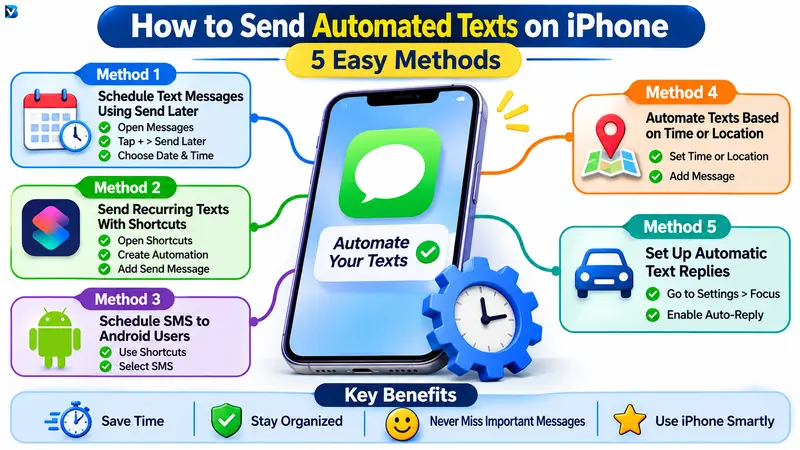
You can send automated texts on an iPhone using Apple’s Messages app and the Shortcuts app. The Messages app lets you schedule individual iMessages for later, while Shortcuts allows you to create recurring automations that send messages at specific times or when certain events happen.
In this guide, you’ll learn five practical ways to automate text messages on iPhone, schedule recurring messages, send texts to Android users, and troubleshoot common problems without relying on expensive third-party apps.
Can You Send Automated Texts on iPhone?
Yes! You can automate text messages on an iPhone using two primary methods:
- Send Later: Schedule an individual iMessage to be delivered at a future date and time.
- Apple Shortcuts: Create time-based, recurring, and event-based message automations.
Apple’s native Send Later feature supports scheduling messages up to 14 days in advance. However, it requires an iMessage conversation. For recurring messages or situations involving SMS and RCS, Shortcuts provides another option.
Here is a quick comparison:
| Feature | Send Later | Shortcuts |
| Schedule individual messages | Yes | Yes, with an automation workaround |
| Recurring messages | No | Yes |
| Daily messages | No | Yes |
| Weekly messages | No | Yes |
| Time-based automation | No | Yes |
| Location-based automation | No | Yes |
| iMessage | Yes | Yes |
| SMS/RCS | Not supported by the documented native feature | Can use the Messages sending action |
| Third-party app required | No | No |
Let’s explore each method step by step.
Method 1: Schedule Text Messages Using the iPhone Messages App
The easiest way to schedule a text message on iPhone is by using the built-in Send Later feature.
This method is ideal for birthday wishes, appointment reminders, work messages, and other one-time messages.
Requirements
- An iPhone running iOS 18 or later.
- The Apple Messages app.
- An iMessage conversation.
- An available internet connection when you need to edit, delete, or reschedule the message.
Steps to Schedule a Text Message
Step 1: Open the Messages App
Open Messages on your iPhone and select the conversation where you want to send a scheduled message.
Step 2: Tap the Plus (+) Button
Tap the plus (+) button next to the message input field.
Step 3: Select Send Later
Choose the Send Later option from the menu.
Step 4: Select the Date and Time
Tap the displayed time and choose the date and time when you want your message delivered.
Step 5: Write Your Message
Enter the message you want to send.
For example:
“Happy Birthday! Hope you have an amazing day filled with happiness.”
Step 6: Tap Send
Tap the Send button. Your message will appear in the conversation with a dashed outline, indicating that it is scheduled rather than already delivered.
Your message is now scheduled.
Apple supports scheduling an iMessage up to 14 days ahead. The scheduled message can be delivered even when your Apple devices are offline.
How to Edit or Cancel a Scheduled Message
You can change a scheduled message before its delivery time.
- Open the Messages conversation.
- Find the scheduled message.
- Touch and hold the message to edit or delete it.
- To change its delivery time, tap Edit beside the scheduled date.
- Choose Edit Time and select another time.
Deleting the scheduled message before delivery cancels it.
Important: The native Send Later feature requires iMessage. Do not assume that it schedules standard SMS or RCS messages in green-bubble conversations.
Method 2: Send Recurring Text Messages With Apple Shortcuts
Do you want to send the same text message every morning or every week automatically?
The Shortcuts app is useful for this purpose.
Unlike Send Later, Shortcuts allows you to create personal automations that repeat according to a schedule.
For example, you can automate:
- Daily Good Morning messages.
- Weekly meeting reminders.
- Regular family updates.
- Daily work reminders.
- Recurring personal notifications.
How to Set Up Automatic Text Messages
Step 1: Open the Shortcuts App
Find and open Apple’s Shortcuts app.
Step 2: Select Automation
Tap the Automation tab at the bottom of the screen.
Step 3: Create a New Automation
Tap the plus (+) button in the upper-right corner.
Depending on your iOS version, you may see Create Personal Automation or New Automation.
Step 4: Select Time of Day
Choose Time of Day as your automation trigger.
Step 5: Choose Your Schedule
Select the time when you want the message to be sent.
You can choose a repeat schedule such as:
- Daily
- Weekly
- Monthly
For example, select 8:00 AM and Daily if you want to send the same message every morning.
Step 6: Configure Automatic Execution
Choose Run Immediately on the current interface, or turn off Ask Before Running on interfaces that use that setting.
This allows supported personal automations to run without asking for confirmation.
Step 7: Add the Send Message Action
Tap Add Action and search for Send Message.
Select the action.
Step 8: Write Your Message
Enter the text you want the automation to send.
Example:
“Good morning! Have a productive and wonderful day.”
Step 9: Select the Recipient
Tap the Recipients field and choose the contact who should receive the message.
Check the selected phone number carefully.
Step 10: Save Your Automation
Tap Done to save the automation.
Your recurring text message is now configured.
Apple documents Time of Day and other personal automation triggers, along with options for automatic execution.
Method 3: Schedule SMS Messages to Android Users
One common limitation of the native Send Later feature is that it requires iMessage.
What happens when you want to send a scheduled message to someone using an Android phone?
You can use the Shortcuts app instead.
The Send Message action can use the available Messages delivery method for the selected recipient, including SMS or RCS where supported by your device, carrier, region, and messaging settings.
Steps to Automate a Text to Android
- Open the Shortcuts app.
- Select Automation.
- Tap the plus (+) button.
- Choose Time of Day.
- Select your preferred sending time.
- Set your desired repeat schedule.
- Select Run Immediately or disable Ask Before Running.
- Tap Add Action.
- Search for Send Message.
- Enter your message and select your Android contact.
- Review the settings and tap Done.
Your iPhone will use the available messaging route when the automation runs.
Example:
Suppose you want to send your colleague a reminder every Monday at 9 AM.
You can create a weekly automation with this message:
“Good morning! Just a reminder about our weekly meeting today.”
The Shortcuts automation can send this message according to your selected schedule.
Always test the automation before relying on it for an important message.
Method 4: Automate Text Messages Based on Time or Location
Apple Shortcuts offers more than simple time-based automation.
You can also use event and location triggers to send messages when a particular condition occurs.
A. Automatically Send a Text When You Leave a Location
Imagine you want to notify a family member when you leave your office.
You can create location-based automation.
Steps:
- Open Shortcuts.
- Tap Automation.
- Create new automation.
- Choose Leave as the trigger.
- Select your office or another location.
- Select Run Immediately where available.
- Add the Send Message action.
- Write your message.
- Select your recipient.
- Save the automation.
Example message:
“I’ve left the office and am on my way home.”
B. Send a Message When You Arrive Somewhere
You can also use the Arrive trigger.
For example, when you reach a selected location, your iPhone can automatically send a predefined message to a chosen contact.
Example:
“I’ve arrived safely.”
Location automations depend on location permissions and device settings. Test the trigger at your chosen location before relying on it.
C. Send Messages at Sunrise or Sunset
Shortcuts also supports time-related triggers such as sunrise and sunset.
You can use these triggers for scheduled personal reminders and other predefined messages.
These options make iPhone text message automation more flexible.
Method 5: Set Up Automatic Text Replies on iPhone
Sometimes you don’t need to send an outgoing message at a scheduled time. Instead, you want your iPhone to reply automatically when someone messages you.
For example:
“Sorry, I’m currently driving. I’ll respond when I reach my destination.”
You can use Driving Focus to configure automatic replies.
Steps to Enable Driving Focus Auto-Reply
- Open Settings.
- Tap Focus.
- Select Driving.
- Tap Customize Focus.
- Find the Auto-Reply option.
- Select who should receive automatic replies.
- Enter your custom reply.
- Enable Driving Focus when needed.
You can choose the supported recipient groups, such as All Contacts, Favorites, Recents, or No One.
Keep in mind that Driving Focus is not a general-purpose vacation or business-hours autoresponder. It is designed for driving-related use.
Shortcuts vs. Send Later: Which Method Is Better?
Both options are useful, but they solve different problems.
| Situation | Recommended method |
| Send a birthday message tomorrow | Send Later |
| Send a daily Good Morning message | Shortcuts |
| Send a weekly work reminder | Shortcuts |
| Send an individual iMessage later | Send Later |
| Automate a location-based message | Shortcuts |
| Send an automatic driving reply | Driving Focus |
| Send a scheduled message to an Android contact | Shortcuts workaround |
For most beginners, Send Later is the simplest option for a one-time iMessage. Shortcuts are better when you need repeated or event-based automation.
Common iPhone Text Automation Problems and Solutions
Even after configuring automation, you may occasionally encounter problems.
Here are some common issues and their solutions.
1. Send Later Is Missing
Possible reason: Your iPhone may not support the feature, the software may be outdated, or the conversation may not be using iMessage.
Solution:
- Check your iOS version.
- Update iOS if an update is available.
- Check whether the conversation uses iMessage.
- Check Apple’s regional feature availability.
2. Automatic Text Messages Are Not Sending
Possible reason: The automation is disabled or waiting for confirmation.
Solution:
- Open Shortcuts.
- Select Automation.
- Check whether the automation is enabled.
- Review its Run Immediately or Ask Before Running setting.
- Check any individual action permissions.
3. The Wrong Person Receives the Message
Possible reason: An incorrect recipient or phone number was selected.
Solution:
Open your automation, review the Recipients field, and select the correct contact and phone number.
4. Messages Stop Repeating
Possible reason: The automation is disabled or its repeat schedule was changed.
Solution:
Open the Automation section in Shortcuts and check its trigger, repeat days, and enabled status.
5. A Message Is Sent Too Many Times
Possible reason: You created a recurring automation but forgot to disable it after the intended message was sent.
Solution:
Open Shortcuts, find the automation, and disable or delete it when you no longer need it.
6. Messages Do Not Send When the iPhone Is Offline
There is an important difference between the two methods.
A message scheduled through Apple’s native Send Later feature is stored on Apple’s servers until delivery and can be delivered while your Apple devices are offline.
Shortcuts automation is triggered locally by your device. Do not assume it will execute at the scheduled time if the iPhone is powered off. Messaging also requires the appropriate network or carrier connection.
Tips for Safe and Effective iPhone Message Automation
Before creating automatic messages, consider these practical suggestions:
- Test your automation with a trusted contact.
- Double-check the recipient’s number.
- Use clear and appropriate messages.
- Avoid sending repetitive or unwanted messages.
- Check your scheduled automations regularly.
- Disable old automations that you no longer use.
- Make sure your messaging and location permissions are configured correctly.
For personal communication, Apple’s built-in tools are often sufficient. Business users who need large-scale SMS campaigns, contact management, or customer messaging should consider a dedicated messaging service instead.
Frequently Asked Questions
1. Can you send automated texts on an iPhone?
Yes. You can use Apple’s Messages Send Later feature for individual iMessages or the Shortcuts app for recurring and event-based message automation.
2. How do I schedule text messages on my iPhone?
Open Messages, select a conversation, tap the plus (+) button, choose Send Later, select a date and time, type your message, and tap Send.
3. Can I send an automatic text every day?
Yes. Create a Time of Day automation in the Shortcuts app, select Daily as the repeat schedule, add Send Message, choose a recipient, and enable automatic execution.
4. Can I schedule text messages to Android users from an iPhone?
The native Send Later feature requires iMessage. For messages to Android users, a Shortcuts automation can use the Messages sending action, subject to the available delivery method and device settings.
5. Can I schedule recurring text messages on my iPhone?
Yes. Use the Time of Day trigger in Apple Shortcuts and choose a daily, weekly, or monthly repeat schedule.
6. Do I need a third-party app to automate texts on the iPhone?
No. Messages and Shortcuts provide built-in options for scheduling and automating many personal text messages.
7. Will scheduled iPhone messages be sent when my phone is turned off?
Messages scheduled through Send Later can still be delivered when your Apple devices are offline. Locally triggered Shortcuts automations should not be relied on when the iPhone is powered off.
8. Can I cancel an automated text message?
Yes. You can delete a scheduled Send Later message before delivery. For Shortcuts, open Automation and disable or delete the relevant automation.
Conclusion
Learning how to send automated texts on an iPhone can save time and make everyday communication easier.
The Messages app is a convenient solution for scheduling individual iMessages, while Apple Shortcuts provides more flexibility for recurring messages, location-based triggers, and automatic communication.
You don’t necessarily need expensive third-party applications to get started. With the right configuration, your iPhone can handle many everyday messaging tasks automatically.
READ MORE :
What Is AP Automation? 7 Benefits and How It Works