
Artificial intelligence has changed the way people research, study, summarize documents, and organize information. One of Google’s most useful AI tools for these tasks is NotebookLM.
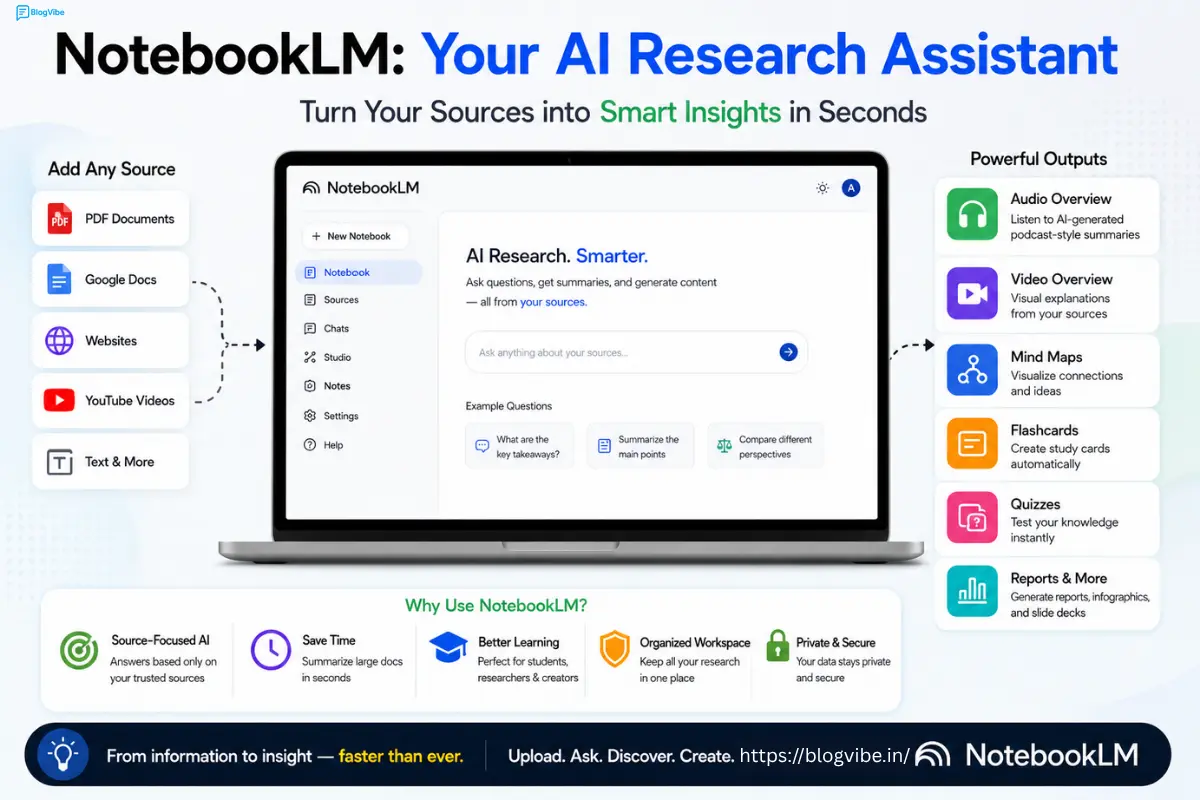
Unlike a general-purpose chatbot, NotebookLM is designed to work closely with the sources you provide. You can upload documents, add websites or other supported sources, and then ask questions based on that material. It can also turn your research into formats such as summaries, Audio Overviews, quizzes, flashcards, reports, mind maps, infographics, and slide decks.
If you are wondering how to use NotebookLM, whether NotebookLM is free, or looking for NotebookLM pricing, this guide explains everything you need to know.
What Is NotebookLM?
NotebookLM is Google’s AI-powered research and note-taking tool. Instead of simply asking an AI chatbot a question and receiving a general answer, you can give NotebookLM a collection of sources and use those sources as the foundation for your research.
A notebook is essentially a separate workspace for a particular project. Google explains that each notebook is independent, meaning information from one notebook isn’t automatically available to another notebook.
For example, you could create separate notebooks for:
- College study material
- A research project
- YouTube research
- Business documents
- PDF books
- Blog research
- A specific subject or course
This makes NotebookLM particularly useful when you need to understand a large amount of information without manually reading every page.
How to Use NotebookLM
Getting started with NotebookLM is relatively simple. Here’s a step-by-step process for beginners.
Step 1: Open NotebookLM
Start by opening NotebookLM and signing in with your Google Account.
After signing in, you can create a new notebook for your project.
Step 2: Create a New Notebook
Create a notebook and give it a meaningful name.
For example, if you’re researching artificial intelligence, you could name it:
AI Tools Research 2026
Keeping different projects in separate notebooks makes your research easier to organize.
Step 3: Add Your Sources
The next step is to provide NotebookLM with the information you want it to analyze.
Depending on the supported source type and account, you can work with materials such as documents, PDFs, websites, YouTube content, and other supported sources. Google also describes NotebookLM as a tool for working with long and complex sources.
For example, you could add:
- PDF documents
- Research material
- Website content
- YouTube sources
- Google-related documents
- Text-based information
Once your sources are added, NotebookLM can use them to answer questions and generate different types of content.
Step 4: Ask Questions
Now you can ask questions about your sources.
For example:
“Summarize the most important points from these documents.”
Or:
“Explain this topic in simple language.”
You can also ask more specific questions, such as:
“What are the three main arguments presented in these sources?”
This source-focused approach is one of NotebookLM’s biggest advantages.
Step 5: Generate Notes and Other Outputs
NotebookLM can help transform your source material into useful study and research formats.
Depending on the available features and limits, you can generate things such as:
- Notes
- Reports
- Mind Maps
- Flashcards
- Quizzes
- Audio Overviews
- Video Overviews
- Infographics
- Slide Decks
Google’s official NotebookLM documentation currently lists these capabilities among its available features.
NotebookLM’s Best Features
1. Source-Based AI Answers
One of NotebookLM’s main strengths is that you can ask questions about your uploaded research material.
This is useful when you’re dealing with lengthy documents and want to quickly locate important concepts.
For example, a student could upload several study documents and ask NotebookLM to explain a difficult topic using those materials.
2. Audio Overviews
One of NotebookLM’s most popular features is Audio Overview.
It can turn information from your sources into an AI-generated, podcast-style discussion. Google describes Audio Overviews as discussions between AI hosts that provide in-depth summaries of important topics from uploaded sources.
This can be useful when you want to learn while:
- Walking
- Traveling
- Exercising
- Taking a break from your screen
Instead of reading a long document, you can listen to an audio explanation.
3. Video Overviews
NotebookLM also offers Video Overviews that transform source material into a visual explanation.
Google introduced Video Overviews to help users understand complex information in a more digestible format.
This can be especially useful for educational and research content.
4. Mind Maps
Mind Maps help organize information visually.
If you have a large research topic with many connected concepts, a mind map can make relationships between those concepts easier to understand.
5. Flashcards and Quizzes
Students can use NotebookLM to turn study material into flashcards and quizzes.
For example, after uploading your biology notes, you could generate questions based on the material and use them for revision.
Google has specifically highlighted flashcards, quizzes, reports, and other study-oriented capabilities in NotebookLM.
6. Reports
NotebookLM can also help organize information into structured reports.
This can save time when you’re researching a topic and need to turn several sources into a more organized document.
7. Slide Decks
NotebookLM can generate presentation-style slide decks from your sources. Google says generated slide decks can be viewed in NotebookLM and shared as PDFs.
This can be useful for students, teachers, researchers, and professionals preparing presentations.
Is NotebookLM Free?
Yes, NotebookLM has a free Standard option.
However, free access comes with usage limits. Google currently lists higher limits for users who upgrade through eligible Google AI plans.
The free version can be enough for casual users, students, and people who want to experiment with NotebookLM.
If you use NotebookLM heavily every day, you may eventually want a paid plan because paid tiers provide higher limits and additional capabilities.
Google’s limits are subject to change, so it’s a good idea to check Google’s official pricing and help pages before purchasing a subscription.
NotebookLM Pricing in 2026
NotebookLM’s premium access is connected to Google’s AI subscription plans rather than being simply a standalone “NotebookLM Pro” subscription.
Google currently offers AI plans that provide expanded access to NotebookLM and other Google AI services.
The important difference between the tiers is generally the amount of usage available.
Google’s current NotebookLM documentation lists the following example limits:
| Feature | Standard | Higher paid tiers |
| Notebooks | 100/user | Up to 500/user |
| Sources per notebook | 50 | Up to 600 |
| Chats | 50/day | Up to 5,000/day |
| Audio Overviews | 3/day | Up to 200/day |
| Video Overviews | 3/day | Up to 200/day |
| Reports | 10/day | Up to 1,000/day |
| Flashcards | 10/day | Up to 1,000/day |
| Quizzes | 10/day | Up to 1,000/day |
These are Google’s currently published limits and are subject to change. Different Google AI plans have different limits.
For Indian users, the exact subscription price should be checked on Google’s India pricing page because availability, taxes, promotions, and plan pricing can change.
Is NotebookLM Worth Paying For?
For most casual users, start with the free version.
You probably don’t need a paid plan if you:
- Research occasionally
- Study a few documents
- Use Audio Overview occasionally
- Don’t hit daily limits
- Only maintain a small number of notebooks
A paid Google AI plan becomes more interesting if you:
- Use NotebookLM every day
- Work with many sources
- Need higher daily limits
- Frequently generate Audio or Video Overviews
- Create lots of quizzes or flashcards
- Use NotebookLM professionally
- Need expanded access to Google’s other AI tools
Google’s paid plans are designed to provide higher NotebookLM limits and expanded access to AI features.
how to use NotebookLM Best Ways
NotebookLM can be useful in many different situations.
For Students
Upload your course material and use NotebookLM to create:
- Study notes
- Flashcards
- Practice quizzes
- Topic summaries
- Audio explanations
This can make revision much faster.
For Bloggers
Bloggers can use NotebookLM to organize research before writing an article.
For example, you could collect several sources about an AI tool, ask NotebookLM to identify important features, and then use those findings as research for your own article.
However, you should always verify important information and write original content rather than copying generated text or another website’s article.
For YouTubers
You can use NotebookLM to organize research for videos.
For example:
- Collect reliable sources.
- Add them to a notebook.
- Ask questions about the topic.
- Identify important facts.
- Create an outline.
- Use the information to develop your own script.
For Researchers
NotebookLM is particularly useful when you have multiple documents that need to be analyzed together.
Instead of repeatedly searching through individual files, you can ask questions about the research collection.
NotebookLM vs ChatGPT
NotebookLM and ChatGPT can both be useful for research, but they are designed with somewhat different workflows.
NotebookLM is particularly useful when your task revolves around a specific collection of sources.
ChatGPT is more general-purpose and can be used for brainstorming, writing, coding, analysis, conversation, and many other tasks.
A simple way to think about the difference is:
NotebookLM = research around your sources
ChatGPT = general-purpose AI assistant
In practice, you can use both together. For example, NotebookLM can help organize and understand research material, while another AI tool can help brainstorm or transform your verified findings into a particular format.
NotebookLM Troubleshooting
If NotebookLM isn’t working as expected, try these basic steps:
Source won’t upload
Check whether the source is supported and whether the file meets the relevant size or format requirements.
Notebook is slow
Large projects containing many sources can require more processing. Try organizing information into separate notebooks.
Audio Overview isn’t available
Check whether you’ve reached your daily generation limit. NotebookLM has different limits depending on your plan.
Some features are missing
Features and limits can vary depending on account type, plan, age requirements, region, and rollout status.
Google’s official NotebookLM Help Center is the best place to check the latest feature-specific requirements.
Best Practices for NotebookLM
To get better results from NotebookLM, follow these tips:
Use high-quality sources
The quality of your output depends heavily on the quality and relevance of your sources.
Ask specific questions
Instead of asking:
“Tell me about this.”
Try:
“Summarize the five most important findings and explain why each one matters.”
Specific questions usually produce more useful results.
Organize notebooks by project
Don’t put unrelated topics into one notebook.
Create separate notebooks for different projects so your research remains organized.
Verify important information
AI tools can make mistakes. For important academic, financial, legal, medical, or business information, verify the information against reliable primary sources.
Don’t blindly copy AI output
Use NotebookLM as a research and productivity assistant rather than treating everything it generates as a finished piece of content.
FAQ: (how to use NotebookLM)
Is NotebookLM free?
Yes. NotebookLM has a free Standard option with usage limits. Paid Google AI plans provide higher limits and additional capabilities.
How do I use NotebookLM?
Sign in with your Google Account, create a notebook, add your sources, and then ask questions or generate outputs such as summaries, Audio Overviews, quizzes, reports, and other supported formats.
How much does NotebookLM cost?
NotebookLM has free access, while expanded capabilities are available through eligible Google AI plans. Pricing can vary by country and plan, so check Google’s current pricing page for the latest India pricing.
Can NotebookLM summarize PDFs?
Yes. NotebookLM is designed to work with source materials including PDFs and other supported sources, making it useful for summarizing and analyzing long documents.
Can NotebookLM generate audio?
Yes. Audio Overview can create AI-hosted, podcast-style discussions based on your sources.
Is NotebookLM better than ChatGPT?
Neither is universally better. NotebookLM is especially useful for source-focused research, while ChatGPT is a broader AI assistant with many different use cases.
Is NotebookLM worth it?
For casual users, the free version is a good place to start. Heavy users who frequently reach usage limits may benefit from an eligible paid Google AI plan.
Conclusion(how to use NotebookLM)
NotebookLM is a powerful AI research and learning tool that can turn large collections of information into something much easier to understand.
If you were searching for how to use NotebookLM, the basic workflow is simple: create a notebook, add your sources, ask questions, and use the available AI tools to transform your research into useful outputs.
If you were wondering if NotebookLM is free, the answer is yes. Google provides a free Standard option, while paid Google AI plans offer higher usage limits and expanded capabilities.
For students, bloggers, researchers, professionals, and YouTubers, NotebookLM can be a valuable addition to an AI-powered workflow. The best approach is to start with the free version, learn how the tool works, and upgrade only if you consistently need the additional limits.
Last updated: August 2026
READ MORE:
GitHub Copilot Review 2026: Powerful Features, Pricing & Is It Worth Paying For?