
Meta has integrated artificial intelligence into Facebook, Messenger, Instagram, and WhatsApp to help users search, answer questions, generate content, and discover information more quickly. While some people appreciate these AI-powered features, others prefer a simpler experience without AI suggestions appearing throughout the app.
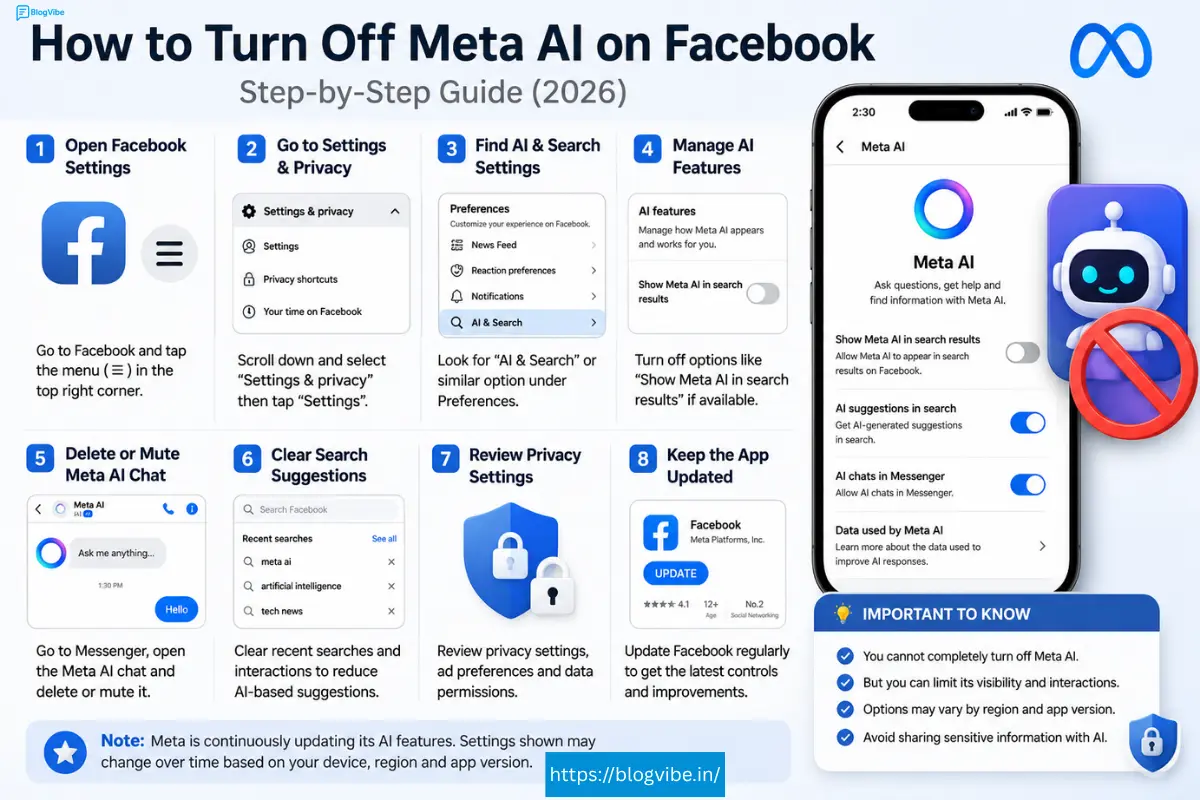
If you’ve been searching for how to turn off Meta AI on Facebook, you’re not alone. Many users want to know whether it’s possible to completely remove Meta AI or at least reduce its presence.
The short answer is that Meta currently does not provide an official option to completely disable Meta AI. However, there are several settings and workarounds that can minimize your interaction with it.
This guide explains exactly what you can and cannot do in 2026, along with privacy tips and troubleshooting steps.
What Is Meta AI on Facebook?
Meta AI is Meta’s built-in artificial intelligence assistant. It appears across Facebook and other Meta apps to help users:
- Search information
- Answer questions
- Generate text
- Recommend content
- Assist with conversations
- Improve search results
Instead of leaving Facebook to search the web, users can ask Meta AI directly within supported parts of the app.
Can You Turn Off Meta AI on Facebook?
This is the question most users ask.
Unfortunately, no.
As of 2026, Facebook does not include an official setting that completely disables Meta AI for all users.
There is currently:
- ❌ No “Turn Off Meta AI” button
- ❌ No permanent disable option
- ❌ No account-level AI switch
However, you can reduce how often you interact with Meta AI by changing certain settings and avoiding AI-powered features.
Why Do People Want to Disable Meta AI?
Users have different reasons for wanting less AI in their Facebook experience.
Common concerns include:
- Privacy preferences
- AI appearing in search
- Unwanted chat suggestions
- Accidental AI conversations
- Cleaner interface
- Personal preference for traditional search
Some users simply want Facebook to work the way it did before AI features were introduced.
How to Reduce Meta AI on Facebook
Although you can’t fully disable Meta AI, you can reduce its visibility.
1. Avoid Using the AI Search Prompt
When searching Facebook:
- Use direct keywords.
- Ignore AI suggestion prompts if they appear.
- Tap regular search results instead of AI-generated responses.
This limits your interaction with Meta AI.
2. Clear Your AI Chat History
If you’ve previously chatted with Meta AI:
- Open Messenger or Facebook.
- Locate your Meta AI conversation.
- Open the chat.
- Delete or clear the conversation.
Removing chat history won’t disable Meta AI, but it helps keep your inbox organized.
3. Mute Meta AI Conversations
If Meta AI appears in Messenger:
- Open the conversation.
- Tap the conversation settings.
- Select Mute Notifications if available.
This reduces interruptions from AI chats.
4. Hide AI Suggestions When Possible
Some AI recommendations can be dismissed by:
- Closing suggestion cards
- Selecting “Not Interested” where available
- Avoiding AI-powered prompts
Available options may vary depending on your region and app version.
5. Keep Facebook Updated
Meta frequently changes its AI features.
Updating the app ensures you have access to the latest controls, privacy improvements, and interface updates.
Adjust Privacy Settings
Although privacy settings don’t disable Meta AI, reviewing them is a good practice.
Check:
- Activity permissions
- Search preferences
- Ad preferences
- Data sharing settings
- Connected apps
Managing these settings helps you understand how your information is used across Meta services.
How to Remove Meta AI Chat
If you no longer want the conversation visible:
- Open Messenger.
- Find the Meta AI chat.
- Press and hold the conversation.
- Select Delete or Archive, depending on the available options.
Remember that deleting the conversation doesn’t remove the AI feature from the app.
Can You Disable Meta AI on Messenger?
Messenger follows the same limitation as Facebook.
Currently:
- No complete disable option
- AI may still appear in supported experiences
- You can delete chats
- You can mute conversations
Meta may introduce additional controls in future updates, but there is no official timeline.
Can You Disable Meta AI on Instagram?
Meta AI is also available on Instagram in supported regions.
You cannot completely turn it off.
However, you can:
- Ignore AI prompts
- Avoid AI search features
- Delete AI conversations if available
- Keep your app updated
Does Meta AI Collect Your Information?
Meta states that AI features may process information you share with them to provide responses and improve services, subject to its privacy policies.
As with many AI assistants:
- Messages sent directly to the AI may be processed.
- Usage data may help improve AI systems.
- Privacy practices vary by feature and region.
For this reason, avoid sharing sensitive personal or financial information in AI conversations.
Common Problems Users Experience
Some users report:
- AI replacing search suggestions
- AI appearing unexpectedly
- Difficulty deleting chats
- AI shortcuts returning after updates
These behaviors often depend on app version, account eligibility, and regional feature rollouts.
Troubleshooting Tips
If Meta AI continues appearing:
Restart Facebook
Close and reopen the app.
Update the Application
Install the newest version from your device’s app store.
Log Out and Back In
Refreshing your session may resolve temporary issues.
Clear App Cache (Android)
Clearing cached data can help with interface glitches.
Reinstall Facebook
If problems persist, uninstalling and reinstalling the app may refresh local settings.
Will Meta Add an Off Switch?
It’s possible, but Meta has not announced a universal setting to disable Meta AI.
Because AI is becoming a core part of Meta’s products, future updates are more likely to expand AI capabilities than remove them.
If Meta introduces new controls, they will likely appear in the app’s settings or help documentation.
Tips for Using Facebook With Less AI
If you prefer a more traditional experience:
- Use manual search terms.
- Avoid AI shortcuts.
- Delete unused AI chats.
- Review your privacy settings regularly.
- Keep your app updated.
- Provide feedback through the app if AI features don’t meet your needs.
These steps won’t eliminate Meta AI but can reduce how often you encounter it.
Is It Safe to Use Meta AI?
For most users, Meta AI is designed to assist with everyday tasks such as answering questions and generating content.
However, it’s good practice to:
- Verify important information from trusted sources.
- Avoid sharing confidential details.
- Review AI-generated responses before relying on them.
Treat AI as a helpful assistant rather than an authority on critical decisions.
Frequently Asked Questions
Can I completely turn off Meta AI on Facebook?
No. As of 2026, Meta does not provide an official setting to completely disable Meta AI on Facebook.
Can I remove the Meta AI chat?
Yes. You can usually delete or archive the conversation, but the AI feature itself remains available.
Does deleting the chat disable Meta AI?
No. It only removes that conversation from your chat list.
Why do I still see Meta AI after deleting it?
Because Meta AI is built into Facebook and Messenger. Deleting a chat doesn’t remove the feature.
Can I disable Meta AI on Instagram and Messenger?
Not completely. You can reduce interactions by deleting chats, muting notifications, and avoiding AI-specific features where possible.
Does Meta AI use my conversations?
Messages you intentionally send to Meta AI may be processed to generate responses and improve the service, according to Meta’s policies. Avoid sharing sensitive information.
Final Thoughts
If you’re looking for how to turn off Meta AI on Facebook, the most important thing to know is that there is currently no official way to completely disable the feature.
What you can do is minimize your interaction with it by deleting AI chats, muting conversations, avoiding AI-powered search experiences, and reviewing your privacy settings. These steps won’t remove Meta AI from Facebook, but they can make your experience feel less AI-focused.
As Meta continues expanding artificial intelligence across its apps, new settings and controls may become available. Until then, staying informed, keeping your app updated, and using the available privacy options are the best ways to manage how you interact with Meta AI.