
how to build an AI agent in n8n: Imagine having an AI assistant that can answer questions, look up information in a spreadsheet, remember a conversation, and trigger real-world actions—all without writing an entire application from scratch.
That is what you can build with n8n and LangChain.
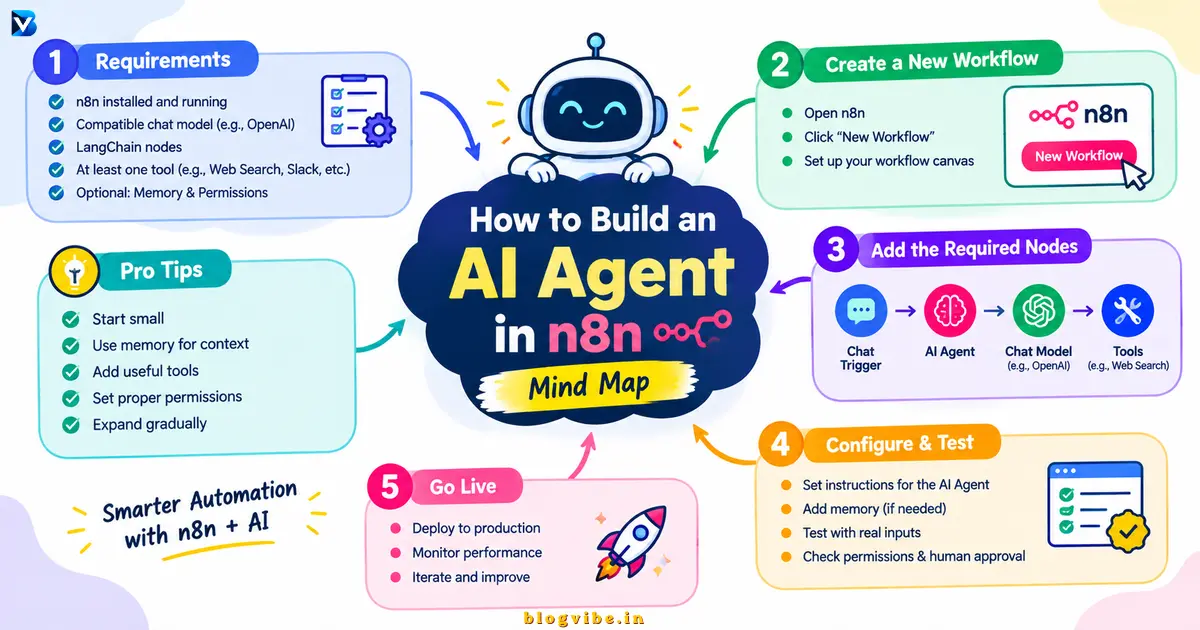
In this tutorial, you will learn how to build an AI agent in n8n, connect a language model, give the agent tools, add conversational memory, and test a practical workflow. This guide is designed for beginners, automation enthusiasts, and developers who want to build useful AI-powered workflows.
What Is an AI Agent in n8n?
An AI agent is a system that uses a language model to interpret a request, decide which available tools to use, and perform actions to complete a task.
Unlike a basic chatbot that primarily generates text, an AI agent can interact with external systems when you provide the necessary tools and permissions.
For example, an AI customer-support agent could:
- Answer questions about a product.
- Search a Google Sheet for shipping or refund information.
- Remember relevant details from an ongoing conversation.
- Retrieve information from an API.
- Draft a response for a human to review.
n8n is a visual workflow automation platform. Its AI Agent node provides a way to connect a language model with tools and other workflow components. n8n’s AI integrations use LangChain-related nodes, so you can build this example visually without separately writing a LangChain application.
For the current configuration, see the official n8n AI Agent documentation.
If you are learning how to build an AI agent in n8n, start by understanding how the AI model, tools, and workflow work together.
How to Build an AI Agent in n8n: Workflow Overview
The basic architecture has four main components.
| Component | Purpose |
| Chat Trigger | Receives the user’s message |
| AI Agent | Determines how to handle the request |
| Chat model | Understands instructions and generates responses |
| Tools | Retrieve information or perform permitted actions |
| Memory (optional) | Maintains relevant conversation context |
The workflow can be represented as:
User message → Chat Trigger → AI Agent → Model + Tools + Memory → Response
The model provides language understanding. The tools give the agent access to external information and actions. Memory helps it maintain conversational context.
An important distinction: memory does not automatically give an agent access to every document or database. For that, you must configure the appropriate tools or knowledge-retrieval system.
What Do You Need Before Building an AI Agent?
Before creating the workflow, prepare the following:
- An n8n account: Use n8n Cloud or a working self-hosted installation.
- A chat model: For example, an OpenAI chat model or another model supported by your n8n installation.
- Model credentials: Create the required API credentials if your chosen provider requires them.
- An agent tool: For this tutorial, we will use a Google Sheets lookup or a connected workflow that retrieves FAQ information.
- Optional memory: Add a memory node if the agent needs to handle follow-up questions.
Remember that using an external model may incur API charges, even when your n8n instance is self-hosted. Check your provider’s pricing and usage limits before deploying the workflow.
Step 1: Create a New n8n Workflow
Log in to your n8n dashboard and create a new workflow.
Give it a descriptive name, such as:
Customer Support AI Agent
A clear name makes the workflow easier to find and maintain as you create more automations.
Next, add a Chat Trigger node. Depending on your n8n version, the chat-trigger settings and labels may differ slightly.
The Chat Trigger allows a user to send a message to your workflow through a chat interface.
For example, the user might ask:
What is your return policy, and how long does delivery take?
The trigger passes that message to the next part of the workflow.
If you want to connect a website, messaging platform, or another application later, you can adapt the trigger and response path to that use case.
Learning how to build an AI agent in n8n starts with creating a workflow and connecting the nodes required for your automation.
Step 2: Add the AI Agent Node
Add an AI Agent node and connect the Chat Trigger to it.
The AI Agent is the central component of the workflow. It uses the incoming message, model instructions, and available tools to decide how to answer.
Configure the agent’s instructions so it has a clearly defined role.
For our example, the agent will act as a customer-support assistant. It should answer questions using approved FAQ information rather than inventing company policies.
Do not leave the agent with vague instructions such as “Help the customer with anything.” A limited, clearly defined role generally makes an agent easier to test and maintain.
At this stage, you are learning how to build an AI agent in n8n by connecting the AI Agent node to your chat workflow and configuring its instructions.
Step 3: Connect a Chat Model
The AI Agent needs a compatible chat model to interpret requests and generate responses.
Add a supported chat-model node, such as OpenAI Chat Model, and connect it to the AI Agent’s model input.
Then:
- Select or create the relevant credentials.
- Choose a model available to your account.
- Configure any supported model options appropriate to your task.
- Save the node and test the credentials.
You can also use another supported provider if it fits your budget, privacy requirements, or performance needs.
For a simple customer-support agent, prioritize reliable instruction following and tool calling over choosing the most expensive model available.
Important: The AI Agent node also needs at least one connected tool. Connecting a model alone is not enough for the current n8n AI Agent configuration.
Choosing a compatible chat model is essential when learning how to build an AI agent in n8n for reliable automation.
Step 4: Give Your AI Agent a Tool
This is the step that lets the agent do more than generate a response from its existing model knowledge.
For this example, imagine you maintain a Google Sheet containing frequently asked questions.
Your sheet might include:
| Question | Answer |
| How long does delivery take? | Standard delivery usually takes 3–5 business days. |
| What is your return policy? | Eligible products can be returned according to the published return policy. |
| How can I contact support? | Contact support through the official contact page. |
These are sample entries. Replace them with your actual business information.
Now connect a compatible Google Sheets tool or a dedicated n8n sub-workflow that retrieves the relevant rows. Configure the required Google authorization, spreadsheet, sheet, and lookup operation.
If you use a separate sub-workflow, expose the required inputs and outputs and connect it through the Call and Workflow Tool or the equivalent supported tool mechanism in your installation.
Give the tool a descriptive name and explain when the agent should use it. For example:
Search the approved FAQ sheet when the user asks about delivery, returns, or customer support. Use the returned information to answer the question. Do not invent policies when no matching information is available.
Test the lookup independently before connecting it to the agent. This helps you distinguish spreadsheet configuration errors from AI-agent errors.
You can later add other tools, such as an HTTP Request tool for an API, a database lookup, or an approved email-drafting workflow.
Step 5: Add Memory to Your n8n AI Agent
Memory is helpful when users ask follow-up questions.
Consider this conversation:
User: I need help with an order.
Agent: What would you like to know about your order?
User: How long will it take to arrive?
The agent needs the appropriate conversation context to understand that the second question refers to the order mentioned earlier.
To add conversation memory:
- Add a supported memory node, such as Simple Memory, if available in your setup.
- Connect it to the AI Agent’s memory input.
- Configure the session identifier or session handling required by your chat setup.
- Test a multi-message conversation.
For example, if a user says, “My order is for a laptop,” and then asks, “Can I return it?”, the agent can use the earlier context when that information remains available in its conversation memory.
Does n8n AI Agent Memory Persist Forever?
No. You should not assume that a simple conversation-memory node provides permanent storage across all sessions or deployments.
There are different kinds of memory:
- Conversation memory: Maintains relevant context during a conversation.
- Persistent storage: Stores selected information beyond a temporary conversation.
- Knowledge retrieval: Searches documents or a knowledge base for information relevant to the current question.
For a production application, choose a suitable storage and retrieval design based on your actual requirements. Test how sessions behave when users reconnect or start a new conversation.
Step 6: Configure the AI Agent System Prompt
The system prompt defines the agent’s role, behavior, limits, and preferred use of tools.
You can start with the following example and adapt it to your workflow:
Example system prompt
You are a helpful customer-support AI assistant.
Your responsibilities:
1. Understand the customer’s question.
2. Use the FAQ lookup tool for questions about delivery,
returns, and customer support.
3. Answer using the information returned by the tool.
4. Use conversation context to understand follow-up questions.
5. If the required information is unavailable, say so clearly.
6. Never invent order details, policies, prices, or delivery dates.
7. Keep responses clear, concise, and polite.
8. Do not send messages, modify records, or make commitments
unless the required action is authorized.
When the available information is insufficient, ask
a relevant follow-up question or escalate to a human.
This prompt defines what the agent should do and when it should avoid making assumptions.
A useful tip is to specify tool-selection rules clearly. For instance, the agent should search the FAQ sheet for a return-policy question instead of guessing the answer from general knowledge.
Step 7: Test Your n8n AI Agent Workflow
Do not publish the workflow immediately after connecting the nodes. Test it with several types of requests.
To understand how to build an AI agent in n8n that works reliably, test different questions, tool calls, and missing-information scenarios.
| Test input | Expected behavior |
| What is your delivery time? | Retrieves and summarizes the approved delivery information |
| What is your return policy? | Uses the FAQ tool to answer |
| Can you explain that again? | Uses available conversation context |
| What is the capital of France? | Answers directly if general questions are permitted by the prompt |
| I need a policy that is not in your FAQ | Acknowledges the missing information instead of inventing a policy |
During testing, inspect the node inputs and outputs to see whether the correct tool was called and whether the returned data was accurate.
If the agent provides an incorrect answer, investigate the source of the error. The issue might be the system prompt, the retrieved data, tool configuration, session handling, or model behavior.
The goal is not simply to get one successful response. It is to confirm that the workflow behaves sensibly across normal questions, follow-ups, missing information, and errors.
Step 8: Improve Reliability Before Deployment
A demo can work well while still being unsuitable for production. Before connecting your agent to real customers or business systems, consider the following safeguards.
Use restricted credentials
Give the agent access only to the tools and records it actually needs. Avoid granting broad permissions to read, edit, or delete business data without a clear requirement.
Add human approval for sensitive actions
Actions such as sending customer emails, changing orders, deleting records, or issuing refunds may require human review.
Where supported, configure approval for those tool calls. Do not rely on the model’s judgment alone to authorize sensitive operations.
Handle errors explicitly
Plan for failed API requests, missing spreadsheet rows, expired credentials, rate limits, and invalid model responses. Configure suitable retries and error-handling paths.
Monitor execution costs
Every model call can contribute to usage costs, and an agent may call tools or a model multiple times during one request. Test realistic workloads and review usage limits before scaling.
Protect customer information
Avoid putting secrets or private customer data into prompts unnecessarily. Restrict access to execution logs, credentials, and stored conversation history according to your security requirements.
These measures make your AI agent workflow easier to maintain and safer to operate.
Common Problems When Building an AI Agent in n8n
When learning how to build an AI agent in n8n, check your model credentials, tool connections, and memory settings if the workflow does not behave as expected.
The AI Agent does not use the tool
Check that at least one valid tool is connected to the AI Agent. Review the tool description and make sure the system prompt tells the agent when to use it.
The model returns incorrect answers
Confirm that the source data is accurate, the retrieval tool is returning the correct information, and the prompt requires the agent to distinguish known facts from missing information.
The agent forgets earlier messages
Review the memory connection and session configuration. Verify that the follow-up messages use the intended conversation session.
The Google Sheets lookup fails
Check the credentials, spreadsheet permissions, selected sheet, and lookup configuration. First test whether the spreadsheet operation works independently of the AI Agent.
The workflow becomes expensive or slow
Reduce unnecessary model calls and limit the tools available to the agent. Use ordinary workflow logic for predictable tasks rather than asking an AI model to decide every step.
n8n AI Agent Examples You Can Build Next
After your basic assistant works, you can adapt the same architecture to other projects.
| AI agent idea | Potential use |
| AI FAQ chatbot | Answer common website questions |
| AI lead-qualification agent | Categorize and route incoming leads |
| AI email assistant | Classify emails and draft replies |
| AI research assistant | Retrieve information from approved sources and summarize findings |
| AI spreadsheet assistant | Answer questions using connected spreadsheet data |
| AI workflow assistant | Call approved sub-workflows to complete specific tasks |
Start with one well-defined task. Add tools only when they provide a clear benefit, and introduce approval steps whenever the agent can cause meaningful changes in an external system.
Conclusion: Build Your First AI Agent with n8n and LangChain
Building an AI agent in n8n does not require you to write an entire application from scratch. By connecting a Chat Trigger, AI Agent, compatible chat model, and at least one tool, you can create a workflow that interprets requests and takes useful actions.
Now you know how to build an AI agent in n8n using LangChain, connect useful tools, add conversational memory, and automate real-world tasks with a practical workflow.
Add memory when your use case needs conversational context, test the workflow against realistic inputs, and introduce appropriate permissions and human approval before putting it into production.
The best approach is to start small, confirm that each component works, and expand your AI agent gradually.
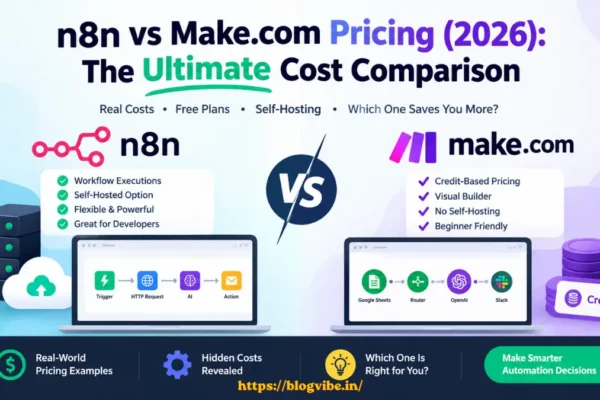
Ready to explore more AI automation tutorials? Visit BlogVibe.in for more practical guides. You can also read our Self-Hosted n8n guide to learn about hosting n8n yourself, or explore our n8n vs Make.com pricing comparison to compare automation platforms.
READ MORE:
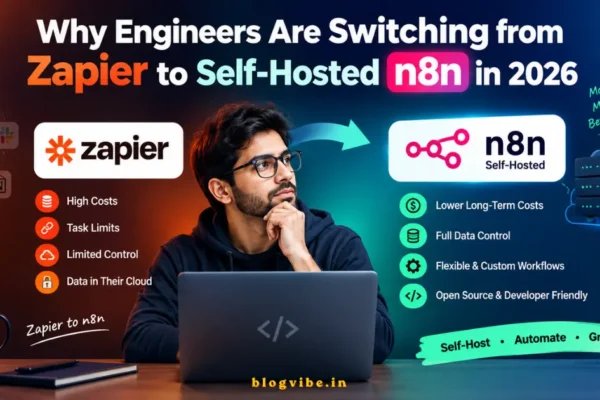
Self-Hosted n8n: Why Engineers Are Switching from Zapier in 2026
Frequently Asked Questions About n8n AI Agents
1. How do you build an AI agent in n8n?
Create a workflow with a Chat Trigger, AI Agent, compatible chat model, and at least one tool. Configure the agent’s instructions, test the workflow, and add memory if needed.
2. What is n8n LangChain integration?
n8n provides AI nodes that let you connect language models, agents, tools, and memory through visual workflows without building the entire application from scratch.
3. Can beginners build an AI agent in n8n without coding?
Yes. Beginners can use n8n’s visual editor to connect nodes and configure an AI agent. Some integrations still require API credentials and basic setup.
4. How do I add memory to an n8n AI agent?
Connect a supported memory node to the AI Agent’s memory input and configure the session correctly. Test follow-up questions to verify that conversation context is maintained.
5. What tools can an n8n AI agent use?
Depending on your configuration, an agent can use Google Sheets, HTTP requests, APIs, databases, and other n8n workflows to retrieve information or perform approved actions.
6. Is n8n better than building an AI agent with LangChain code?
n8n is useful for visual automation and connecting applications. Coding directly with LangChain provides more programmatic control. The best option depends on your project’s requirements.
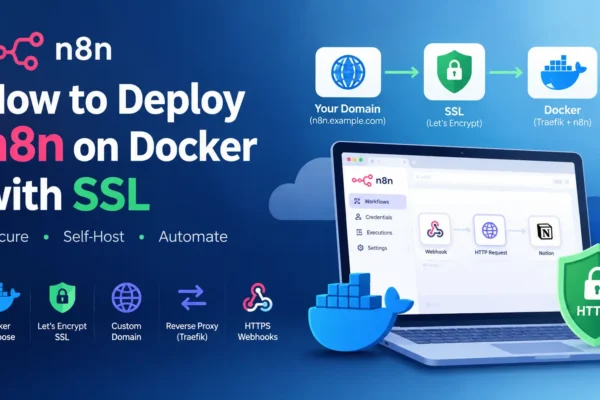
7. Can I self-host an n8n AI agent?
Yes. You can run n8n on your own infrastructure with the required AI integrations and credentials. You are responsible for securing, updating, and maintaining the deployment.