

Self-hosting n8n gives you control over your workflow automation environment, integrations, and deployment configuration. However, exposing an n8n instance to the internet without properly configuring HTTPS can create security risks and cause webhook issues.
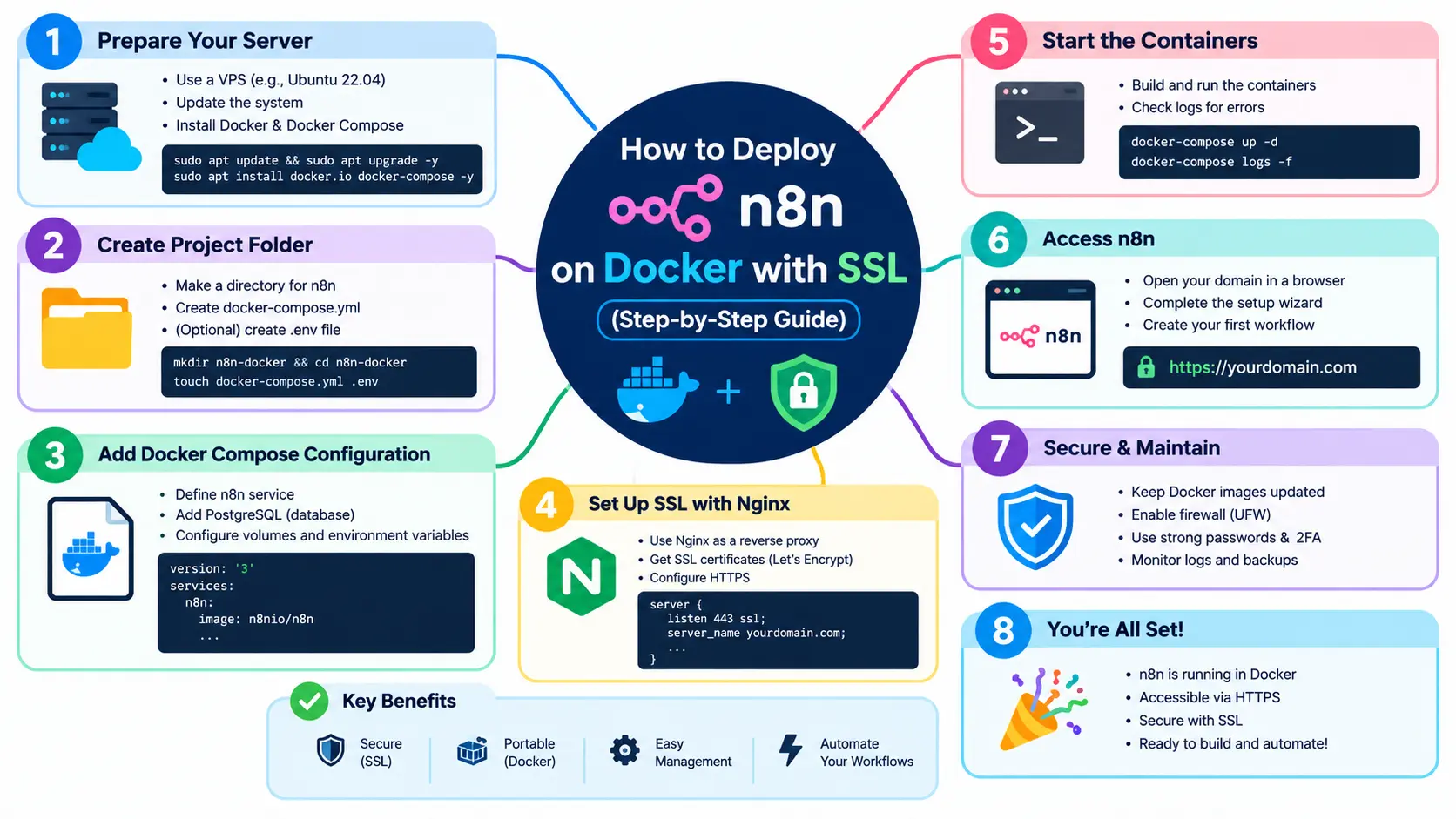
In this guide, you’ll learn how to deploy n8n on Docker with SSL using Docker Compose, a custom domain, Traefik, and a free Let’s Encrypt certificate. You’ll also configure HTTPS webhook URLs, verify the deployment, and troubleshoot common errors.
The basic process is simple: install Docker, point your domain to your server, deploy n8n with Docker Compose, configure Traefik to manage SSL certificates, and verify that your instance works over HTTPS.
Prerequisites for n8n Docker SSL Setup
Before you install n8n with Docker and HTTPS, prepare the server and domain you’ll use for your deployment.
Server, Domain, and Software Requirements
You’ll need:
- A Linux VPS or server with sufficient resources for your expected workflows.
- Docker Engine and Docker Compose v2.
- A domain or subdomain, such as n8n.example.com.
- SSH access with permission to configure Docker and the firewall.
- An email address for Let’s Encrypt certificate notifications.
This tutorial uses Traefik as the reverse proxy. It handles incoming HTTPS requests and forwards them to n8n inside Docker.
Check Your Docker Installation
Connect to your server through SSH and run:
docker –version
docker compose version
If both commands return version information, you’re ready to continue. Otherwise, install Docker using the official Docker Engine installation guide.
Configure a Custom Domain for n8n
A custom domain allows you to access n8n through a memorable URL rather than a public IP address.
Point Your Domain to the Server IP
Open your domain registrar’s DNS settings and create an A record.
| Record | Host | Value |
| A | n8n | Your server’s public IPv4 address |
For example, if your domain is example.com, the resulting hostname will be n8n.example.com.
Replace the example hostname throughout this guide with your actual domain. Confirm that the DNS record resolves to your server before requesting an SSL certificate.
Open the Required Firewall Ports
Allow inbound TCP traffic on ports 80 and 443. Traefik uses port 80 for HTTP certificate validation and redirects HTTP traffic to HTTPS, while port 443 serves secure connections.
Do not expose n8n’s internal port 5678 directly to the public internet when Traefik handles external access.
Install n8n with Docker and HTTPS Using Docker Compose
Docker Compose lets you define n8n, Traefik, networking, and persistent storage in one configuration file.
Create the Docker Compose Project
Create a directory for the deployment:
mkdir -p ~/n8n-docker
cd ~/n8n-docker
Generate a strong encryption key:
openssl rand -hex 32
Save the generated value securely. You’ll use it in the environment file to protect stored credentials.
Create a .env file:
nano .env
Add the following values, replacing the examples:
N8N_HOST=n8n.example.com
ACME_EMAIL=admin@example.com
N8N_ENCRYPTION_KEY=paste_your_generated_key_here
TZ=UTC
Use your real domain, a valid email address, and the encryption key you generated. Protect this file because it contains a sensitive secret.
Configure the n8n Docker Compose Setup
Create the Compose file:
nano compose.yaml
Add this configuration:
services:
traefik:
image: traefik:v3
restart: unless-stopped
command:
– “–providers.docker=true”
– “–providers.docker.exposedbydefault=false”
– “–entrypoints.web.address=:80”
– “–entrypoints.websecure.address=:443”
– “–entrypoints.web.http.redirections.entrypoint.to=websecure”
– “–entrypoints.web.http.redirections.entrypoint.scheme=https”
– “–certificatesresolvers.letsencrypt.acme.email=ACMEEMAIL”-“–certificatesresolvers.letsencrypt.acme.storage=/letsencrypt/acme.json”-“–certificatesresolvers.letsencrypt.acme.httpchallenge=true”-“–certificatesresolvers.letsencrypt.acme.httpchallenge.entrypoint=web”ports:-“80:80”-“443:443″volumes:-/var/run/docker.sock:/var/run/docker.sock:ro-letsencryptdata:/letsencryptn8n:image:docker.n8n.io/n8nio/n8n:latestrestart:unless-stoppedenvironment:-N8NHOST={N8N_HOST}
– N8N_PROTOCOL=https
– N8N_PORT=5678
– N8N_WEBHOOK_URL=https://N8NHOST/-N8NPROXYHOPS=1-N8NENCRYPTIONKEY={N8N_ENCRYPTION_KEY}
– GENERIC_TIMEZONE=TZ-TZ={TZ}
volumes:
– n8n_data:/home/node/.n8n
labels:
– “traefik.enable=true”
– “traefik.http.routers.n8n.rule=Host(`${N8N_HOST}`)”
– “traefik.http.routers.n8n.entrypoints=websecure”
– “traefik.http.routers.n8n.tls.certresolver=letsencrypt”
– “traefik.http.services.n8n.loadbalancer.server.port=5678”
volumes:
n8n_data:
letsencrypt_data:
This configuration uses a persistent volume for n8n data and another for SSL certificates. Traefik automatically requests and renews certificates through Let’s Encrypt.
The Docker socket is sensitive, even when mounted read-only. For a hardened production deployment, consider restricting Docker API access and using an appropriate isolation strategy.
For production, pin the n8n image to a tested version rather than relying indefinitely on the latest. Review the official n8n Docker Compose documentation before deployment.
Configure SSL Certificates for n8n Docker
Set Up the Reverse Proxy for SSL Termination
Traefik acts as the entry point for incoming requests. It receives traffic on ports 80 and 443, obtains the certificate, and forwards HTTPS requests to n8n over the internal Docker network.
This architecture avoids the need to manage certificates inside the n8n container itself.
Before starting the deployment, check that:
- Your domain points to the correct server.
- Ports 80 and 443 are accessible from the internet.
- No other service is occupying those ports.
- Your environment file contains the correct domain and email.
Enable Let’s Encrypt SSL and Automatic Renewal
Start the services:
docker compose config
docker compose up -d
The first command validates the rendered Compose configuration. The second starts the containers.
Check their status:
docker compose ps
View the Traefik logs if certificate issuance fails:
docker compose logs traefik
Let’s Encrypt certificates are issued only when domain validation succeeds. Traefik stores certificate information in its persistent volume and manages renewal automatically.
For additional details, consult the official n8n SSL setup documentation.
Configure n8n Webhook URLs for HTTPS
Secure access to the n8n editor is only one part of the setup. Webhook URLs must also use the correct public HTTPS address.
Set the Correct Public Webhook URL
The Compose configuration includes these important variables:
- N8N_WEBHOOK_URL: defines the public webhook base URL.
- N8N_PROXY_HOPS: tells n8n how many trusted proxy hops sit in front of it.
- N8N_PROTOCOL: specifies the external protocol.
- N8N_HOST: defines the hostname used by the instance.
In this example, N8N_PROXY_HOPS=1 assumes Traefik is the single trusted reverse proxy directly in front of n8n. If you introduce another proxy or load balancer, adjust this setting and the forwarded-header configuration accordingly.
Test a Production Webhook
Create a simple workflow with a Webhook node and activate it. Trigger its production URL from an HTTP client or another application.
Confirm that the URL starts with https:// and that the request reaches the workflow successfully.
For more information, see n8n’s reverse-proxy webhook configuration guide.
Start, Verify, and Secure Your n8n Deployment
Verify HTTPS and Container Health
Open your configured domain in a browser:
Complete the initial n8n setup and confirm that the browser reports a valid certificate.
You can also inspect container logs:
docker compose logs –tail=100 n8n
docker compose logs –tail=100 traefik
If the interface loads and your test webhook succeeds, the essential deployment steps are complete.
Apply Basic Security Measures
Before using the instance for important workflows:
- Use strong authentication and enable available account security features.
- Keep .env and encryption keys private.
- Back up the n8n data volume and store backups securely.
- Update Docker images deliberately, with a backup and rollback plan.
- Keep the Docker socket and internal application ports protected.
- Run the n8n security audit and review its findings.
A valid SSL certificate protects data in transit, but it does not replace authentication, patching, backups, or secure server administration.
Common n8n Docker SSL Errors and How to Fix Them
| Problem | Likely cause | What to check |
| SSL certificate not issued | Incorrect DNS or failed validation | DNS records, ports 80/443, and Traefik logs |
| Website unavailable | Container failure or occupied port | docker compose ps and service logs |
| Webhook URL uses HTTP | Incorrect public URL configuration | N8N_WEBHOOK_URL and proxy headers |
| Workflows or credentials missing after restart | Missing or incorrect persistent storage | n8n_data volume and container configuration |
| HTTPS works but webhooks fail | Incorrect proxy-hop or webhook configuration | Forwarded headers and production webhook URL |
Start troubleshooting with the logs instead of repeatedly restarting containers. Logs often reveal whether the problem comes from DNS, certificate validation, networking, or application configuration.
Frequently Asked Questions
Que: Can I deploy n8n on Docker with free SSL?
Ans: Yes. You can use Traefik with Let’s Encrypt to obtain and automatically renew a publicly trusted SSL/TLS certificate, provided domain validation succeeds.
Que: Is Docker Compose suitable for self-hosting n8n?
Ans: Yes. Docker Compose is a practical way to manage n8n, persistent storage, and supporting services in a reproducible configuration.
Que: Does n8n require HTTPS for production webhooks?
Ans: HTTPS is strongly recommended for production deployments, particularly when workflows receive external requests or handle sensitive information.
Que: Can I use n8n without a custom domain?
Ans: You can run n8n locally or access it through other network arrangements, but a public domain is generally more convenient for automated SSL certificates and externally accessible webhooks.
Que: How do I renew an n8n SSL certificate?
Ans: With this Traefik configuration, certificate renewal is handled automatically. Keep the certificate storage persistent and investigate Traefik logs if renewal fails.
Conclusion: Deploy n8n on Docker with SSL Successfully
Deploying n8n on Docker with SSL involves configuring Docker Compose, pointing a domain to your server, setting up a reverse proxy, and verifying HTTPS and webhook URLs. Traefik and Let’s Encrypt simplify certificate management, while persistent storage protects your n8n data across container restarts.
Before relying on the instance for production workflows, verify backups, authentication, certificate renewal, and server security. These checks help make your self-hosted automation environment more reliable and maintainable.
Transparency note: This guide provides a practical configuration template, not a claim of a personally tested deployment. Validate the Compose file and current n8n and Traefik documentation against your server environment before using it in production.
READ MORE:
How to Use Google NotebookLM for Study, Research & Content Creation in 2026