
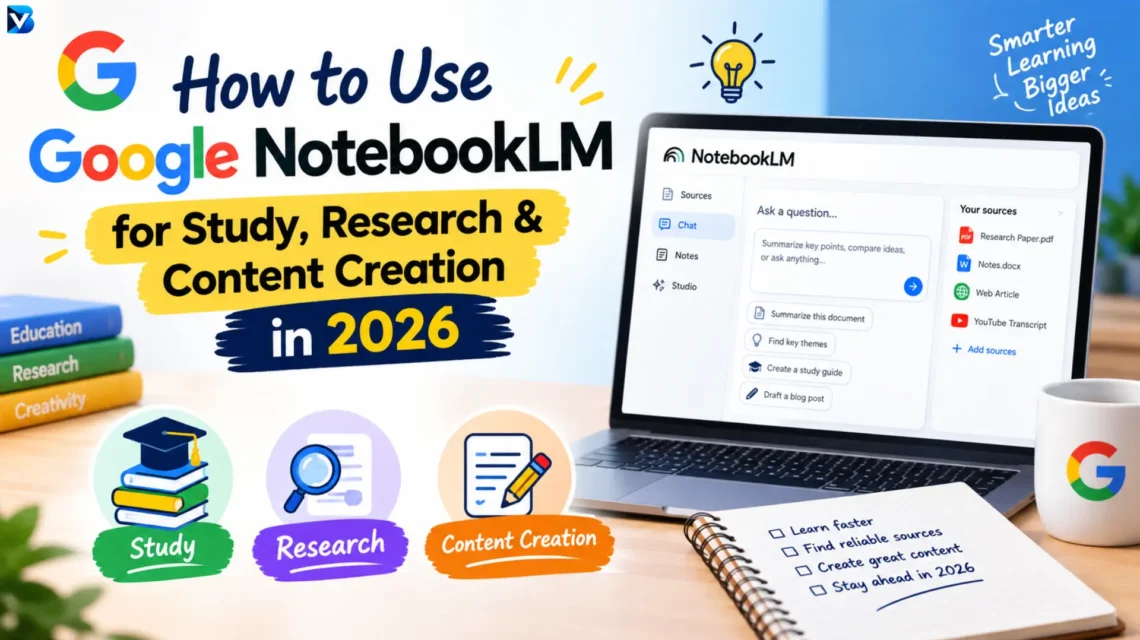
What if you could upload your notes, research papers, PDFs, and other sources into one place and then ask AI to explain, compare, summarize, and organize everything for you?
That is the idea behind Google NotebookLM, which is now officially called Gemini Notebook. Google says it is the same standalone product previously known as NotebookLM, with existing notebooks remaining accessible. (blog.google)
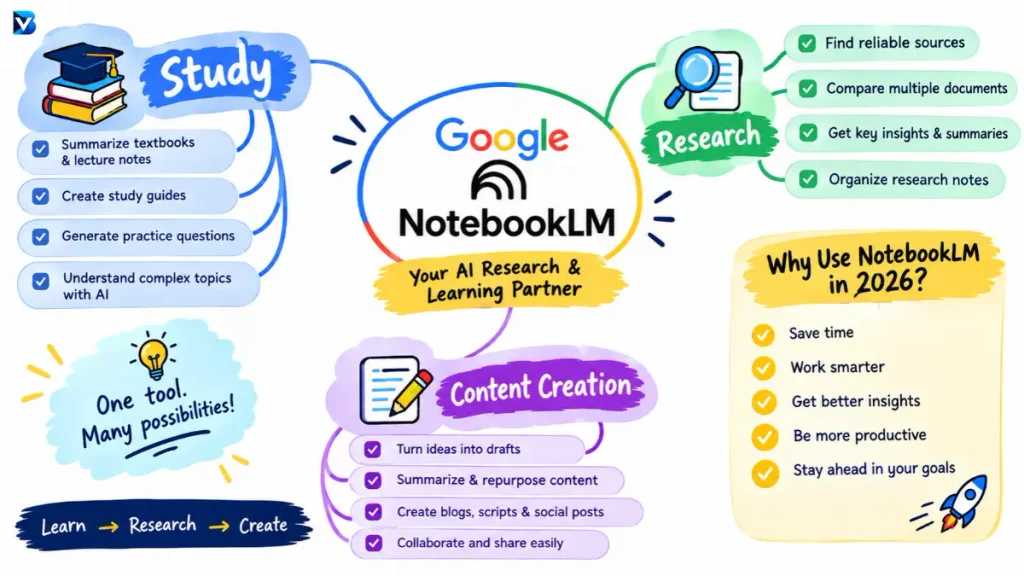
For students, researchers, bloggers, and content creators, Gemini Notebook can become a powerful source-based AI workspace. In this guide, you will learn what NotebookLM is, whether it is free, how to log in, and how to use it for studying, research, and content creation.
What Is NotebookLM?
NotebookLM is Google’s AI-powered research and learning tool. In July 2026, Google renamed it Gemini Notebook, while keeping it as a standalone product. (blog.google)
The main difference between a traditional chatbot and Gemini Notebook is its focus on your own source material.
You can use your sources to:
- Ask questions
- Understand complicated information
- Summarize documents
- Create study materials
- Compare different sources
- Build research notes
- Generate reports
- Create quizzes and flashcards
- Develop content ideas
- Analyze information
Google describes Gemini Notebook as a research and thinking partner grounded in information you trust. (blog.google)
Is NotebookLM Free?
Yes. Gemini Notebook has a standard access tier that you can use without a paid Google AI plan. Google also offers paid plans with higher usage limits and additional capabilities.Google changed Gemini Notebook’s usage system in September 2026. Usage now depends on factors such as prompt complexity, the models and features being used, and the length of your chats. Limits can refresh periodically, while paid plans provide higher limits.
Gemini Notebook Free vs Paid
| Feature | Standard Access | Paid Plans |
| Create notebooks | Yes | Yes |
| Add sources | Yes | Yes |
| Ask questions | Yes | Yes, with higher limits |
| Study tools | Yes | Yes, with higher limits |
| Reports | Yes | Higher limits |
| Flashcards | Yes | Higher limits |
| Quizzes | Yes | Higher limits |
| Audio Overviews | Yes | Higher limits |
| Deep Research | Limited | Higher limits |
| Advanced usage | Limited | More access |
Google’s current limits are subject to change, so check your account’s usage information when planning intensive research work.
NotebookLM Login: How to Sign In
Because Google renamed NotebookLM to Gemini Notebook, you may see the new name when you sign in.
The login process is straightforward.
How to log in to NotebookLM
- Open Gemini Notebook.
- Select the sign-in option.
- Sign in with your Google Account.
- Create a new notebook or open an existing one.
- Add your sources and start asking questions.
Google confirms that existing NotebookLM notebooks remain accessible after the name change.
How to Use NotebookLM for Study
One of the best uses of Gemini Notebook is exam preparation.
Imagine you have a textbook chapter, three lecture PDFs, class notes, and a research paper. Instead of repeatedly opening each document, you can organize them inside one notebook and question the material directly.
Step 1: Create a subject-specific notebook
Create separate notebooks for different subjects.
For example:
| Notebook | Sources |
| Biology | Lecture notes, textbook, PDFs |
| Economics | Class notes, reports, research papers |
| Computer Science | Course material, documentation |
| History | Books, notes, articles |
Keeping related material together makes your study workflow much easier.
Step 2: Add your study material
Add the documents and other supported sources that you actually need.
The objective is not to upload everything.
The objective is to provide the most relevant material for the topic you are studying.
Step 3: Ask specific questions
Instead of asking:
“Summarize this.”
Try:
“Explain the three most important concepts from this chapter in simple language.”
Or:
“Create 15 exam questions from these notes, starting with easy questions and gradually increasing the difficulty.”
Specific prompts usually produce much more useful results.
How to Use NotebookLM for Exam Preparation
You can use Gemini Notebook before, during, and after your study sessions.
Before studying
Ask:
“Create a study guide covering the most important concepts in these sources.”
During studying
Ask:
“Explain this topic as if I am learning it for the first time.”
For revision
Ask:
“Create 20 flashcards based only on the important facts in these sources.”
For practice
Ask:
“Create a mock test with 20 questions. Do not show the answers until I respond.”
Google currently supports study-oriented features such as flashcards and quizzes within Gemini Notebook.
How to Use NotebookLM for Research
Gemini Notebook can also be useful when you need to analyze multiple documents.
Suppose you are researching:
How is artificial intelligence changing digital marketing?
You might collect:
- Academic papers
- Industry reports
- Official company documents
- Research articles
- Your own notes
Put the sources into one notebook and start asking comparative questions.
Useful research prompts
“Compare the conclusions of these three studies.”
“Which claims are supported by multiple sources?”
“Where do these sources disagree?”
“Identify the strongest evidence supporting this argument.”
“Create a research summary organized by theme.”
The ability to work across multiple sources is one of Gemini Notebook’s core strengths, and Google has continued adding more advanced research capabilities.
How to Use NotebookLM for Research Papers
If you are writing a research paper, don’t begin by asking AI to write the entire paper.
Start with research.
A better workflow
Step 1: Collect your sources.
Step 2: Organize them in one notebook.
Step 3: Ask questions about similarities and differences.
Step 4: Identify important evidence.
Step 5: Create an outline.
Step 6: Verify information against the original sources.
Step 7: Write your final paper using your own analysis and citations.
This approach makes AI a research assistant rather than a replacement for your own thinking.
How to Use NotebookLM for Content Creation
For bloggers and YouTubers, Gemini Notebook can be especially useful during the research stage.
Imagine you want to write an article about an AI tool.
Instead of asking AI:
“Write a 2,000-word article.”
First collect:
- Official documentation
- Pricing information
- Feature information
- Product announcements
- Competitor information
- Customer questions
- Your own test notes
Then put those materials into a notebook.
Step 1: Create a research brief
Prompt:
“Create a detailed research brief from these sources for a beginner-friendly article.”
Step 2: Find reader questions
Prompt:
“Identify the most important questions a beginner would ask about this product.”
Step 3: Find useful insights
Prompt:
“Identify important features, limitations, use cases, comparisons, and practical examples from these sources.”
Step 4: Build an article outline
Prompt:
“Create an SEO-friendly outline with H2 and H3 headings based on these sources.”
Step 5: Add your own experience
This step matters.
For a stronger blog post, add:
- Your own testing
- Original screenshots
- Personal observations
- Real examples
- Pros and cons
- Comparisons
- Practical recommendations
Google has expanded Gemini Notebook’s research and content-generation capabilities, including reports and other output formats.
Best NotebookLM Prompts for Students
Understanding a topic
“Explain this concept in simple language using only my sources.”
Creating revision notes
“Create concise revision notes covering the most important information.”
Making flashcards
“Create flashcards for the key definitions, facts, and concepts.”
Preparing for an exam
“Create 25 exam-style questions based on these sources.”
Finding weak areas
“Identify the concepts that are most difficult to understand and explain them step by step.”
Creating a study plan
“Create a seven-day study plan based on these materials.”
Best NotebookLM Prompts for Researchers
Comparing sources
“Compare the main conclusions of all sources and show where they agree and disagree.”
Finding evidence
“Find the strongest evidence supporting this claim.”
Identifying gaps
“Identify research gaps or unanswered questions in these sources.”
Creating an outline
“Create a detailed outline for a research article using these sources.”
Summarizing a large collection
“Group these sources into major themes and summarize each theme.”
Best NotebookLM Prompts for Bloggers
Keyword research support
“Identify common questions a beginner would have about this topic based on these sources.”
Content outline
“Create a detailed outline that completely answers the search intent for this topic.”
FAQ research
“Identify long-tail questions that should be included in the article.”
Content improvement
“Find missing topics or important information that should be added to this article.”
Fact checking
“List claims in this draft that need verification against the original sources.”
How to Use NotebookLM Audio Overviews
Another useful feature is Audio Overviews.
Instead of reading a large amount of material immediately, you can use the feature to understand the material in an audio-style format.
For example, imagine you have a long research document.
A useful workflow is:
Research document → Audio Overview → Initial understanding → Read the original source in detail
This can make large amounts of information easier to approach.
NotebookLM vs ChatGPT
Both tools can be useful, but they are often better suited to different workflows.
| Task | Gemini Notebook | ChatGPT |
| Working with your own sources | Excellent | Excellent |
| Source-based research | Excellent | Very good |
| Studying documents | Excellent | Very good |
| Creating study resources | Excellent | Very good |
| Brainstorming | Very good | Excellent |
| General writing | Very good | Excellent |
| Creative writing | Good | Excellent |
| Research organization | Excellent | Excellent |
The biggest advantage of Gemini Notebook is its source-centered approach and its growing integration with Google’s AI ecosystem.
7 Common NotebookLM Mistakes to Avoid
1. Uploading too many irrelevant sources
More information is not automatically better.
Use relevant and trustworthy sources.
2. Asking vague questions
Instead of:
“Tell me about this.”
Ask:
“Compare the conclusions of these two reports and explain the three biggest differences.”
3. Trusting every answer without checking
AI-generated responses can still contain mistakes.
Always verify important claims against the original source.
4. Using low-quality sources
The quality of your research depends heavily on the quality of the material you provide.
5. Publishing AI-generated content without editing
Add original analysis, examples, testing, screenshots, and useful conclusions.
6. Ignoring citations and source context
Always check where important information came from.
7. Assuming features and limits never change
Google continues to update Gemini Notebook, including its features and usage limits.
Is NotebookLM Worth Using in 2026?
Yes, especially if your work involves documents, research, study material, or large amounts of information.
Students can use it to turn notes into study resources.
Researchers can use it to compare documents and organize findings.
Bloggers can use it to build research briefs and content structures.
Content creators can use it to transform complex source material into more useful content formats.
The most effective workflow is simple:
Collect sources → Organize them → Ask focused questions → Verify the information → Apply your own thinking.
The goal should not be to use AI to publish more content.
The goal should be to use AI to understand information faster and create something more useful.
Frequently Asked Questions
What is NotebookLM?
NotebookLM is Google’s AI research and learning tool. Google renamed it Gemini Notebook in July 2026, while keeping the same standalone product and existing notebooks.
Is NotebookLM free?
Yes. Gemini Notebook offers standard access without a paid Google AI plan. Paid plans provide higher usage limits and additional capabilities.
Is NotebookLM free for students?
Students can use the standard version subject to the applicable usage limits. Students using school or university Google Workspace accounts may have access based on their institution’s Google Workspace setup.
How do I log in to NotebookLM?
NotebookLM is now called Gemini Notebook. Sign in with your Google Account to create or access notebooks. Your existing notebooks remain accessible after the renaming. (Gemini Notebook)
How can I use NotebookLM for studying?
Add your notes, PDFs, textbooks, or other study material and ask targeted questions. You can also use features such as flashcards, quizzes, and study resources to support revision.
Can NotebookLM help with research papers?
Yes. You can use Gemini Notebook to organize sources, compare research findings, identify important evidence, and develop research outlines. Google has continued to expand its capabilities for complex research projects.
Can NotebookLM help with blog writing?
Yes. It can help you research a topic, identify important information, organize sources, create content briefs, and develop article structures. The final article should still include your own analysis, verification, and original value.
Conclusion
Google NotebookLM, now called Gemini Notebook, is much more than an AI summarization tool.
For students, it can become a personal study assistant.
For researchers, it can become a source-analysis workspace.
For bloggers, it can become a powerful research and content-planning assistant.
Start with one focused notebook, add a few trustworthy sources, ask specific questions, verify important information, and then turn those insights into something useful.
The best results come from treating Gemini Notebook as a research partner rather than simply asking it to generate content.
READ MORE:
Steve AI Review 2026: Pricing, Features, Pros, Cons & Best Alternatives