

n8n Code node loop example: Working with JSON arrays in n8n can be easy—until your API returns hundreds of records, nested objects, or arrays inside arrays. One small data-structure mistake can break your entire automation.
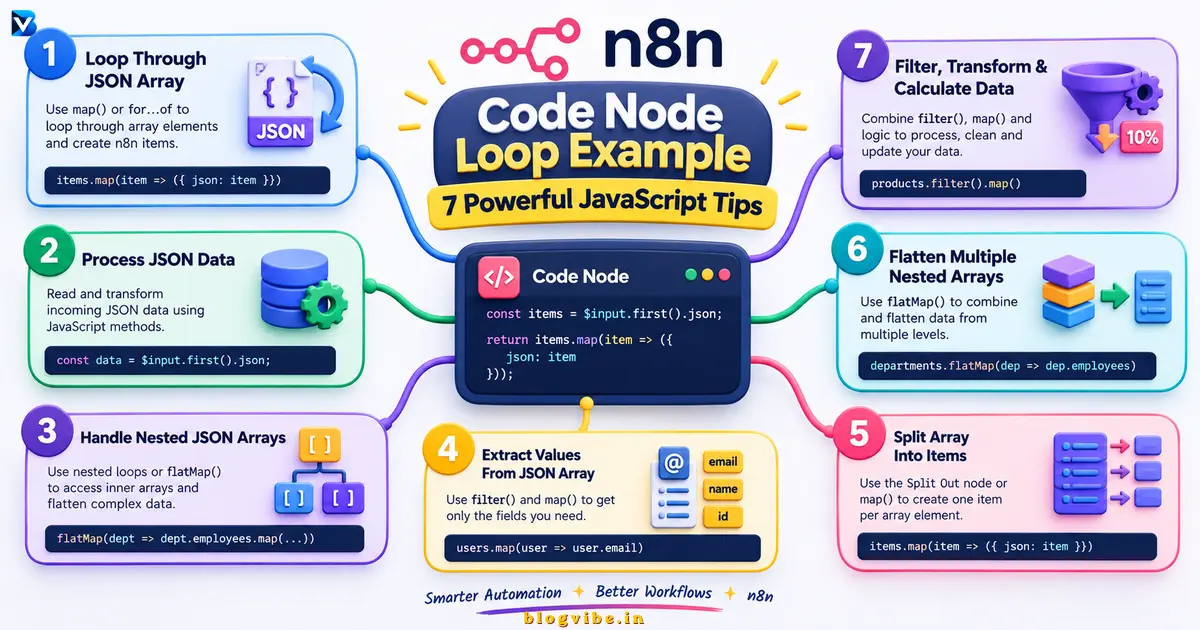
In this guide, you’ll learn how to loop through JSON arrays in n8n using JavaScript, extract nested values, split arrays into separate workflow items, and transform complex API responses with practical, copy-and-paste examples.
Whether you’re a beginner or an experienced automation engineer, these techniques will help you build cleaner and more reliable n8n workflows.
What Is JSON Array Processing in n8n?
JSON array processing means reading, looping through, filtering, or transforming a collection of values stored inside a JSON array.
For example, an API might return this response:
{
“users”: [
{
“id”: 1,
“name”: “Amit”,
“role”: “Admin”
},
{
“id”: 2,
“name”: “Priya”,
“role”: “Editor”
},
{
“id”: 3,
“name”: “Rahul”,
“role”: “Author”
}
]
}
The user’s property contains an array of three objects. You might need to extract each user’s name, filter administrators, or send each user an individual email.
In n8n, you can accomplish these tasks using the Code node, Split Out node, or Loop Over Items node. The right choice depends on whether you need to transform data with JavaScript or control the execution of downstream workflow steps.
Understanding the n8n Code Node Loop Example
The n8n Code node allows you to write JavaScript to manipulate workflow data. Before writing a loop, you need to understand its two execution modes.
| Mode | How it works | Best use case |
| Run Once for All Items | Executes once and gives you access to all input items | Filtering, aggregation, array transformations |
| Run Once for Each Item | Executes separately for every input item | Updating or calculating values for individual records |
For more details, see the official n8n Code node documentation.
Example 1: Loop Through a JSON Array Using JavaScript
Suppose your input contains a users array and you want to generate one n8n item for every user.
Input JSON:
{
“users”: [
{ “id”: 1, “name”: “Amit” },
{ “id”: 2, “name”: “Priya” },
{ “id”: 3, “name”: “Rahul” }
]
}
Steps:
- Add a Manual Trigger node.
- Add an Edit Fields node and create a users field containing the array above.
- Connect a Code node.
- Set the mode to Run Once for All Items.
- Paste the following code.
const input = $input.first().json;
const users = Array.isArray(input.users)
? input.users
: [];
return users.map(user => ({
json: user
}));
Expected output: Three separate n8n items, each containing one user.
The map() method transforms every array element into the item structure n8n expects. This is a useful starting point for an n8n Code node loop example.
Example 2: Process JSON Data With a for…of Loop
Sometimes you need more than a simple transformation. You might want to skip invalid records, calculate totals, or apply conditional logic.
Consider this input:
{
“orders”: [
{ “id”: 101, “amount”: 500 },
{ “id”: 102, “amount”: 1200 },
{ “id”: 103, “amount”: 800 }
]
}
Use the following code in Run Once for All Items mode:
const input = $input.first().json;
const orders = Array.isArray(input.orders)
? input.orders
: [];
const results = [];
for (const order of orders) {
if (order.amount >= 800) {
results.push({
json: {
…order,
status: “Eligible”
}
});
}
}
return results;
This example returns orders 102 and 103 because their amounts are at least 800. It also adds a status field to each result.
Practical tip: Use for…of when your logic involves multiple steps, conditions, or intermediate calculations. Use map() for straightforward one-to-one transformations.
Example 3: Loop Through a Nested JSON Array in n8n
Nested JSON is common in e-commerce APIs, CRM systems, analytics platforms, and database responses.
For example:
{
“customer”: “Amit”,
“orders”: [
{
“orderId”: “A101”,
“products”: [
{ “name”: “Laptop”, “price”: 50000 },
{ “name”: “Mouse”, “price”: 800 }
]
},
{
“orderId”: “A102”,
“products”: [
{ “name”: “Keyboard”, “price”: 1500 }
]
}
]
}
Here, the products array is nested inside each order. To extract every product into a separate n8n item, use:
const input = $input.first().json;
const orders = Array.isArray(input.orders)
? input.orders
: [];
const products = [];
for (const order of orders) {
const orderProducts = Array.isArray(order.products)
? order.products
: [];
for (const product of orderProducts) {
products.push({
json: {
orderId: order.orderId,
…product
}
});
}
}
return products;
Expected output: Three separate items—Laptop, Mouse, and Keyboard—with their associated order IDs.
This is a practical solution for an n8n nested JSON array when you need to flatten product records while preserving their parent order information.
Example 4: Extract Values From a JSON Array
Sometimes you don’t need the complete object. You only need a particular field, such as email addresses, product IDs, or names.
Suppose the input is:
{
“users”: [
{ “id”: 1, “name”: “Amit”, “email”: “amit@example.com” },
{ “id”: 2, “name”: “Priya”, “email”: “priya@example.com” }
]
}
Use this JavaScript:
const input = $input.first().json;
const users = Array.isArray(input.users)
? input.users
: [];
return users
.filter(user => user.email)
.map(user => ({
json: {
email: user.email
}
}));
This code extracts the email field and skips records without an email address.
You can adapt the same pattern to extract:
- Customer IDs from a CRM response.
- Product names from an e-commerce API.
- URLs from a list of articles.
- Email addresses from a contact database.
- Status values from a task management system.
Example 5: Split an Array Into Separate n8n Items
Not every array-processing task requires JavaScript.
If your input contains an array and your goal is simply to create one item per array element, the Split Out node is often the easiest option.
For example, this input:
{
“products”: [
{ “name”: “Laptop” },
{ “name”: “Mouse” },
{ “name”: “Keyboard” }
]
}
To split it:
- Add a Split Out node to your workflow.
- Select products as the field to split out.
- Execute the node.
- Inspect the output to confirm that each product is now a separate item.
For a detailed reference, see the official n8n Split Out documentation.
Which method should you choose?
| Requirement | Recommended approach |
| Split one array into individual items | Split Out |
| Transform every array element | Code node with map() |
| Apply complex conditions | Code node with for…of |
| Process batches through multiple workflow nodes | Loop Over Items |
| Combine multiple arrays or calculate totals | Code node |
Remember that the Loop Over Items node processes incoming n8n items, not automatically every element inside an array stored in a single item’s JSON. Split the array first when necessary.
Example 6: Flatten Multiple Nested Arrays With JavaScript
Imagine an API returns several departments, each containing an array of employees.
{
“departments”: [
{
“name”: “Engineering”,
“employees”: [
{ “name”: “Amit” },
{ “name”: “Priya” }
]
},
{
“name”: “Marketing”,
“employees”: [
{ “name”: “Rahul” }
]
}
]
}
You want a single list of employees, including their department names.
const input = $input.first().json;
const departments = Array.isArray(input.departments)
? input.departments
: [];
const employees = departments.flatMap(department => {
const departmentEmployees = Array.isArray(department.employees)
? department.employees
: [];
return departmentEmployees.map(employee => ({
json: {
department: department.name,
…employee
}
}));
});
return employees;
The result contains three n8n items. Each employee retains the name of their department.
The flatMap() method combines mapping and flattening into one operation, making it useful for nested-array transformations.
Example 7: Filter, Transform, and Calculate Data in One Code Node
For a more advanced n8n JavaScript Code node example, suppose an API returns a list of products and you want to:
- Ignore products that are out of stock.
- Keep products priced above 1,000.
- Add a 10% discounted price.
- Return each qualifying product separately.
Input JSON:
{
“products”: [
{ “name”: “Laptop”, “price”: 50000, “inStock”: true },
{ “name”: “Mouse”, “price”: 800, “inStock”: true },
{ “name”: “Monitor”, “price”: 12000, “inStock”: false },
{ “name”: “Keyboard”, “price”: 2500, “inStock”: true }
]
}
JavaScript code:
const input = $input.first().json;
const products = Array.isArray(input.products)
? input.products
: [];
return products
.filter(product =>
product.inStock === true &&
Number(product.price) > 1000
)
.map(product => ({
json: {
…product,
discountedPrice: Math.round(
Number(product.price) * 0.9 * 100
) / 100
}
}));
The output contains the Laptop and Keyboard, each with a discountedPrice field.
This pattern is useful when preparing product feeds, filtering leads, processing API responses, or cleaning records before sending them to another service.
Common Mistakes When Looping Through JSON Arrays in n8n
Even correct JavaScript can fail when the input or output structure isn’t what n8n expects.
1. Treating an Array as Multiple n8n Items
A JSON array inside one item is not automatically the same as multiple incoming n8n items. Use Split Out or return one item per array element from the Code node.
2. Forgetting the json Wrapper
A reliable Code node output format is:
return [
{
json: {
name: “Amit”,
role: “Developer”
}
}
];
Each output item’s json property should contain an object. Avoid returning a bare array of raw strings or numbers when you need separate n8n items.
See n8n’s Code node common issues for troubleshooting guidance.
3. Assuming Every Array Exists
An API may return an empty array, omit a field, or provide null. Use Array.isArray() to validate data before looping.
4. Choosing the Wrong Execution Mode
Use Run Once for All Items when you need to process all input items together. Use Run Once for Each Item when your code should run independently for each incoming item.
5. Using JavaScript When a Built-In Node Is Simpler
The Split Out node is often easier for basic array splitting. The Loop Over Items node is useful when a sequence of workflow nodes must run in controlled batches.
6. Ignoring Large Datasets
For large arrays, consider memory usage, batch sizes, API rate limits, and whether the entire dataset needs to be held in memory. Test your workflow with realistic data volumes before production use.
Best Practices for Reliable n8n JSON Array Processing
Follow these practical rules to keep your workflows maintainable:
- Validate arrays before calling map(), filter(), or flatMap().
- Use descriptive variable names such as orders, products, and employees.
- Keep the required n8n output structure consistent.
- Test empty arrays and missing properties.
- Use built-in nodes when they solve the problem more simply.
- Use Loop Over Items when downstream operations require controlled batches.
- Test with sample data before connecting the workflow to production systems.
- Keep an eye on execution time and memory usage when processing large responses.
Conclusion: Build Smarter n8n Workflows With JavaScript
Looping through advanced JSON arrays in n8n becomes much easier when you understand the difference between JavaScript arrays and n8n workflow items.
Use map() for transformations, for…of for complex logic, flatMap() for nested arrays, Split Out for simple array splitting, and Loop Over Items when you need controlled execution across workflow nodes.
Start with a small test dataset, validate the output, and expand your workflow once everything works as expected.
Want to learn more about automation and self-hosting? Visit BlogVibe.in for more practical tutorials. Explore our guides on self-hosted n8n and n8n vs Make.com pricing to discover more ways to build cost-effective automation workflows.
Bookmark this guide, try the examples in your own n8n instance, and share it with other automation builders.