

n8n execution timeout error: Is your n8n workflow stopping before it finishes? Are your API requests taking too long, or is your AI automation getting stuck during execution? An n8n workflow timeout error can interrupt important automations, but the solution is often simpler than you think.
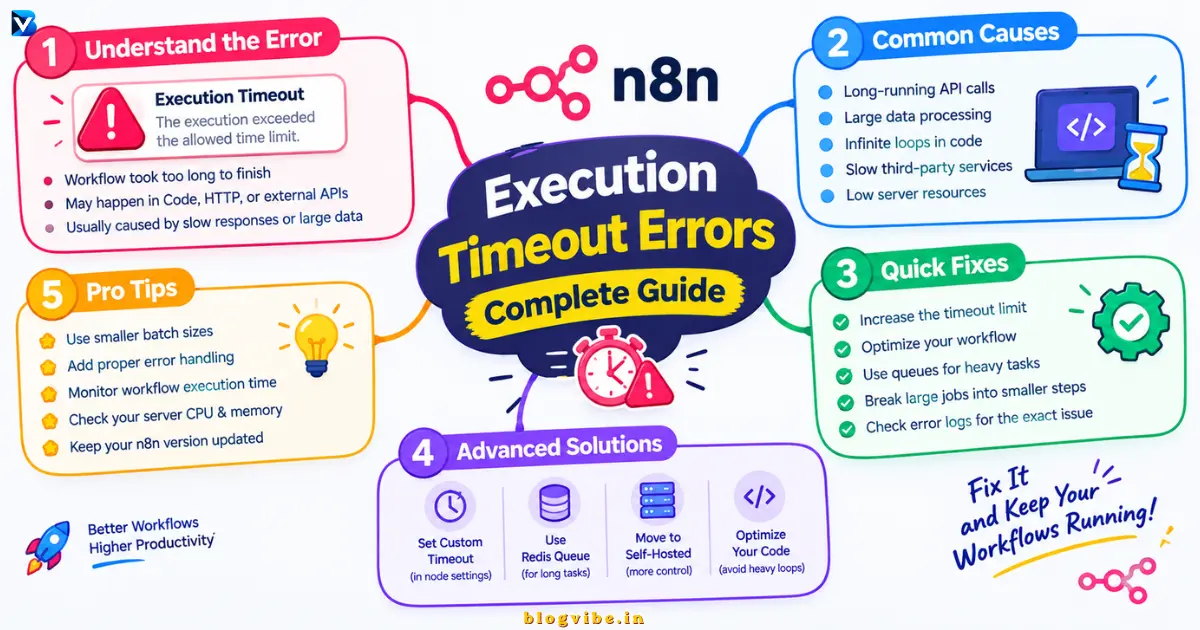
In this guide, you will learn how to fix n8n execution timeout errors, increase execution time limits, configure HTTP Request timeouts, troubleshoot Docker installations, and make slow workflows more reliable. Whether you use n8n Cloud or a self-hosted instance, these practical solutions will help you identify the real problem and choose the right fix.
What Is an n8n Execution Timeout Error?
An n8n execution timeout error occurs when a workflow or an individual operation takes longer than the allowed time or an external system stops waiting for a response.
For example, imagine you have created an automation that collects website data, sends it to an AI model, and saves the result to Google Sheets. If the API responds slowly or the workflow processes too many records, the execution may take longer than expected.
The result can be a failed workflow, a stalled operation, or a request that times out before the automation completes.
However, not every timeout comes from the same place. Before changing your settings, identify which part of the workflow is actually failing.
Common Causes of n8n Workflow Timeout Errors
| Cause | What happens | Possible solution |
| Workflow time limit | The workflow exceeds its configured duration | Review the workflow timeout settings |
| Slow external API | An API takes too long to respond | Set an HTTP Request timeout and handle failures |
| Large datasets | Too many records are processed in one execution | Use pagination and smaller batches |
| Slow AI model | An AI request takes longer than expected | Reduce unnecessary input and output or use a suitable model |
| Limited server resources | CPU or memory pressure slows down processing | Optimize the workflow and investigate resource usage |
| Too many simultaneous executions | Several workflows compete for resources | Review concurrency and queue configuration |
| Webhook response timeout | The calling application stops waiting | Return an early response and process the task asynchronously |
The most important step is to identify the actual bottleneck. Increasing a timeout can help when a legitimate task needs more time, but it will not automatically fix memory problems, inefficient workflows, or an unresponsive API.
How to Fix n8n Execution Timeout Errors
Follow these troubleshooting methods in order, starting with the simplest checks.
1. Identify the Node Causing the Timeout
Before changing any configuration, find the node where the execution slows down or fails.
Follow these steps:
- Open your workflow in n8n.
- Open the Executions tab.
- Select a failed execution.
- Inspect the node inputs, outputs, error message, and execution details.
- Identify the last successful node and the node that failed or took unusually long.
For example, if your Webhook and Edit Fields nodes finish quickly but your HTTP Request node fails, investigate the API request before changing the entire workflow’s timeout.
If the workflow contains AI Agent, database, or external service nodes, test the suspected operation separately with a small input.
Practical tip: Record how long each important operation takes. This makes it easier to distinguish a slow API from a workflow that is processing too much data.
2. Increase the n8n Workflow Execution Timeout
If your workflow is working correctly but genuinely needs more time, increase its allowed execution duration.
For supported workflow settings:
- Open the workflow.
- Open Settings.
- Find the Timeout Workflow option.
- Enable it if available.
- Set the Timeout After value to a reasonable duration.
- Save the workflow and test it again.
For example, a workflow that processes a large dataset might need several minutes, while a simple notification workflow should usually finish much sooner.
Choose a timeout based on the task’s expected duration, not an arbitrary maximum.
Keep in mind that n8n Cloud applies plan-dependent execution limits. You cannot assume that every Cloud plan supports the same maximum timeout.
3. How to Increase n8n Execution Timeout in Self-Hosted n8n
If you run n8n on your own server, you can configure execution time limits using environment variables.
Two important variables are:
- EXECUTIONS_TIMEOUT: Sets the default execution timeout in seconds. The documented default is -1, which disables this default timeout.
- EXECUTIONS_TIMEOUT_MAX: Sets the maximum duration, in seconds, that an individual workflow can configure.
For example, the following configuration sets a default timeout of one hour and allows individual workflows to configure up to two hours:
EXECUTIONS_TIMEOUT=3600
EXECUTIONS_TIMEOUT_MAX=7200
The values mean:
| Variable | Value | Meaning |
| EXECUTIONS_TIMEOUT | 3600 | Default timeout of one hour |
| EXECUTIONS_TIMEOUT_MAX | 7200 | Maximum configurable workflow timeout of two hours |
These values are examples, not universal recommendations. Use a shorter limit when your workflow should finish quickly, and increase it only when the task genuinely requires additional processing time.
Configure environment variables using Docker Compose
If you run n8n through Docker Compose, add the variables to the n8n service in your existing Compose file:
services:
n8n:
environment:
– EXECUTIONS_TIMEOUT=3600
– EXECUTIONS_TIMEOUT_MAX=7200
Preserve your existing environment variables, volumes, ports, credentials, and other configuration. Do not replace your entire Compose file with this short example.
After making the change, recreate or restart the n8n container using your usual deployment procedure. Confirm that the variables are loaded and that the workflow behaves as expected.
If you use a managed n8n hosting service, check which configuration options the provider allows instead of assuming you can set environment variables directly.
4. Fix the n8n HTTP Request Timeout
The HTTP Request node is a common source of timeouts because it depends on an external server or API.
Suppose your workflow calls an API to retrieve customer records. If that API becomes slow or unresponsive, the HTTP Request node can delay everything downstream.
To address an HTTP Request timeout:
- Open the HTTP Request node.
- Review its URL, authentication, and request parameters.
- Open the node’s options.
- Configure its Timeout option if available.
- Set a reasonable limit for the external request.
- Test the API independently to determine whether the delay is coming from the remote service.
For example, a timeout of 30000 milliseconds represents 30 seconds where the option accepts milliseconds. Select a value appropriate for your endpoint and its normal response time.
A node-level timeout and a workflow-level timeout solve different problems. The HTTP Request timeout limits how long the request can wait, while the workflow timeout controls the overall execution duration.
What if the API is slow?
Try these solutions:
- Check whether the external API is experiencing an outage.
- Request fewer records if the API supports pagination or result limits.
- Verify that your credentials and request parameters are correct.
- Use bounded retries for temporary network errors.
- Respect API rate limits and any Retry-After instructions.
- Handle failures gracefully instead of retrying indefinitely.
Retries are useful for temporary failures, but excessive retries can increase the total execution time. Use a limited number of attempts with sensible intervals.
5. Fix an n8n Workflow That Is Taking Too Long
A workflow may be slow even when no individual node appears broken.
Large payloads, unnecessary transformations, repeated API calls, and lengthy AI responses can all increase execution time.
Use the following techniques to improve performance.
Process records in smaller batches
Avoid retrieving thousands of records and processing all of them in one large operation.
Instead, use pagination or the Loop Over Items node where appropriate. Start with a manageable batch size, then adjust it based on the size of your data, memory usage, API limits, and execution duration.
For example:
- Batch 1 processes records 1–100.
- Batch 2 processes records 101–200.
- Batch 3 processes records 201–300.
This approach can make failures easier to isolate and allow you to resume work without repeating the entire dataset.
The best batch size depends on your workflow; 100 records may work well for small objects but be too many for large files or expensive AI operations.
Remove unnecessary data
Use the Edit Fields node to keep only the properties needed by downstream nodes.
If an API returns 50 fields but your next step requires only three, avoid carrying the entire response through every stage of the workflow.
Reducing payload size can lower memory pressure and reduce the work done by later nodes.
Split complex workflows into sub-workflows
Consider separating a large workflow into smaller units, such as:
- Collect the source data.
- Validate and transform the data.
- Perform AI or API processing.
- Save the results.
- Report success or failure.
Use the Execute Sub-workflow functionality when it makes the workflow easier to manage. Pass only the required data between stages.
Breaking up a workflow does not automatically eliminate memory or timeout problems, but it can make individual steps easier to test and recover.
6. Fix n8n Docker Timeout and Resource Problems
If you use a self-hosted Docker installation, a timeout may be related to slow processing, resource constraints, or external API delays.
Start with these checks:
- Review the failed execution to identify the slow node.
- Check container logs for errors or unexpected restarts.
- Monitor available memory and CPU usage.
- Check whether the host or container is running out of resources.
- Reduce batch sizes and large payloads before increasing resource limits.
Do not assume that every Docker timeout means you need more RAM.
If the actual problem is an API waiting for a response, increasing container memory may make no difference.
For memory-intensive workloads, verify that the server has sufficient physical memory before changing the Node.js heap limit. Increasing the heap limit without sufficient host memory can cause the container or process to be terminated.
7. Fix n8n Webhook Timeout Errors
Webhook timeouts are different from workflow execution timeouts.
A webhook caller may stop waiting for a response even while the n8n workflow continues processing. This often happens when an application expects an immediate HTTP response but the workflow performs several slow API or AI operations first.
For a long-running task, consider this architecture:
- Receive the webhook request.
- Validate the incoming data.
- Return an immediate acknowledgement when appropriate.
- Process the actual task in the background.
- Send the final result through a callback, notification, or status endpoint.
Depending on the workflow, you can configure the Webhook node to respond immediately or use a Respond to Webhook node.
Check the calling application’s timeout as well as any reverse proxy or server timeout. Changing n8n’s execution limit alone will not necessarily resolve a caller-side timeout.
Do not return an immediate success response if the task has not actually been accepted or validated. Make the acknowledgement accurately reflect what has happened.
8. Review AI Agent and External Model Delays
AI-powered workflows can take longer when they use large prompts, generate lengthy responses, call several tools, or repeatedly invoke a model.
To reduce these delays:
- Remove irrelevant context from prompts.
- Limit output length when the task allows it.
- Use a model appropriate for the complexity of the job.
- Reduce unnecessary sequential API or tool calls.
- Give external requests clear time limits.
- Add sensible retry and failure-handling logic.
If a workflow needs to process many items with an AI model, process them in controlled batches instead of sending an unrestricted amount of work in one execution.
For AI workflows, the goal should be predictable completion time, not simply allowing the workflow to run indefinitely.
9. Review Concurrency and Execution Load
If several workflows start at the same time, they may compete for available CPU, memory, database capacity, or external API limits.
Look for patterns such as:
- Timeouts occur mainly during busy periods.
- Several executions started simultaneously.
- API rate-limit responses.
- Slow database queries.
- Container resource usage increases during peak activity.
For self-hosted installations with sustained high workloads, investigate execution concurrency and queue mode. Queue mode can distribute work across workers, but it requires appropriate infrastructure and configuration.
Scaling is not the first step for every timeout. First confirm whether the issue is insufficient capacity, slow external services, or inefficient workflow design.
10. Test the Fix Before Returning to Production
After changing your configuration, test the workflow with representative data.
Use this checklist:
- Confirm the original error no longer occurs.
- Verify that the previously slow node finishes within its expected duration.
- Test with a realistic dataset rather than just one record.
- Confirm that temporary API failures are handled correctly.
- Verify that retries do not duplicate actions.
- Check that the workflow can recover from a partial failure.
- Monitor a production execution before considering the problem resolved.
Avoid repeatedly running a workflow against real customers or payment systems while troubleshooting. Use test data and non-destructive actions wherever possible.
n8n Execution Timeout Settings: Quick Reference
Use this table to select the right starting point for your problem.
| Problem | First thing to check | Recommended action |
| Workflow exceeds its time limit | Workflow Settings | Adjust the workflow timeout appropriately |
| HTTP Request node hangs | Node options and target API | Set a request timeout and handle errors |
| Docker workflow runs slowly | Container logs and resources | Find the bottleneck before scaling |
| Large workflow processes too many records | Dataset size and payloads | Use pagination and smaller batches |
| Webhook caller times out | Webhook response mode and caller limit | Return an appropriate early response and process asynchronously |
| AI Agent takes too long | Model calls, prompt size, and tool usage | Reduce unnecessary work and configure bounded waits |
| Failures occur during busy periods | Concurrent executions and rate limits | Review capacity, concurrency, and queue configuration |
Common Mistakes to Avoid When Fixing n8n Timeout Errors
Increasing the timeout without investigating
A longer timeout does not make an inefficient workflow faster. If the API is unavailable or the process is stuck, a larger limit may only delay the failure.
Setting every timeout to unlimited
Unlimited execution time can allow stalled work to remain active longer than necessary. Use appropriate safeguards for each workflow and its external operations.
Adding too many retries
Retries can help with temporary failures, but too many attempts may prolong an execution and increase the load on a failing API.
Ignoring memory and payload size
A workflow processing large files or thousands of records may need architectural changes rather than a larger timeout.
Changing several settings simultaneously
Change one relevant setting at a time and test the result. This makes it easier to identify which change solved the problem and reduces the risk of introducing new issues.
Conclusion
An n8n execution timeout error does not always mean your server is too slow or your workflow needs a higher time limit. The real cause may be a slow HTTP Request, a large dataset, an AI model delay, a webhook response limit, or insufficient execution resources.
Start by identifying the node that is failing. Then adjust the relevant timeout, improve data processing, configure retries carefully, or investigate server capacity as appropriate.
Ready to fix your workflow? Open your latest failed execution, identify the node responsible, apply the matching solution from this guide, and test it with realistic data before deploying the change to production.
If you found this guide helpful, save it for your next n8n troubleshooting session and share it with anyone building workflow automations.
1. How do I fix an n8n execution timeout error?
Open the failed execution and identify the node responsible for the delay. Check the workflow timeout, external API response time, node-level timeout, data size, and server resources. Fix the underlying cause before increasing the execution limit.
2. How do I increase the n8n execution timeout?
In supported workflows, open Settings, enable Timeout Workflow, and configure Timeout After. For self-hosted installations, review EXECUTIONS_TIMEOUT and EXECUTIONS_TIMEOUT_MAX. Hosted plans may have platform-specific maximums.
3. What is the difference between workflow timeout and HTTP Request timeout in n8n?
A workflow timeout controls how long the overall workflow is allowed to execute. An HTTP Request timeout limits how long a particular external request can wait. Both settings may be relevant when a workflow depends on a slow API.
4. How do I fix an n8n HTTP Request timeout?
Check the API endpoint, network connection, authentication, and request parameters. Configure the HTTP Request node’s timeout, reduce the amount of requested data, and use bounded retries for temporary failures. If the external service is unavailable, changing the workflow timeout alone will not solve the problem.
5. Why is my n8n workflow taking too long?
Common causes include slow APIs, large datasets, lengthy AI model responses, unnecessary processing, memory pressure, and too many simultaneous executions. Inspect the execution data to identify where the time is being spent.
6. How do I fix an n8n timeout error in Docker?
Inspect the failed execution and Docker logs, then check memory, CPU, and external API response times. Optimize large payloads and process data in smaller batches. Increase available resources only when monitoring shows that the server is genuinely resource-constrained.
7. Can I prevent n8n webhook timeout errors?
For long-running tasks, return an appropriate acknowledgement early and process the task asynchronously. Also review the webhook caller’s timeout and any reverse proxy limits. Make sure the response accurately represents whether the task has been accepted or completed.
READ MORE:
Looping Through Advanced JSON Arrays in n8n Using JavaScript: 7 Powerful Examples