Creating a good YouTube thumbnail can take almost as much time as making the video itself. You need to find the right frame, remove backgrounds, adjust faces, add text, choose colors, and make sure everything looks good on a small screen.
This is where an AI YouTube thumbnail maker can make the process much easier.
WayinVideo YouTube Thumbnail Maker lets you create thumbnails by simply uploading a video or pasting a YouTube video link. Instead of manually searching through your video for a suitable frame, the AI analyzes the content and creates multiple thumbnail options for you.
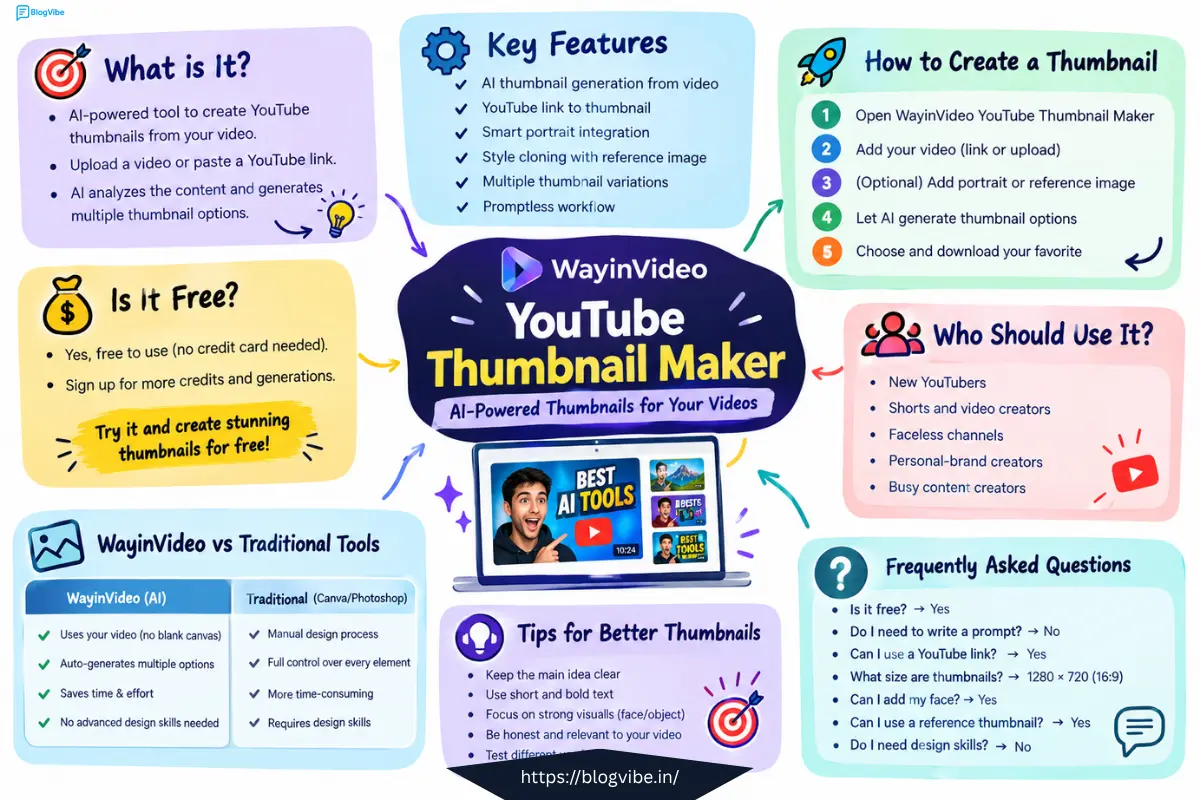
The tool also supports optional portrait integration, reference images, style cloning, and multiple variations for thumbnail testing.
In this guide, we’ll look at how the WayinVideo YouTube Thumbnail Maker works, its main features, how to create a thumbnail step by step, and who can benefit from using it.
What Is WayinVideo YouTube Thumbnail Maker?
WayinVideo YouTube Thumbnail Maker is an AI-powered tool designed to turn your video content into YouTube-ready thumbnails.
You can either paste a YouTube video URL or upload a video file. The tool currently supports formats including MP4, MOV, WEBM, and AVI.
After receiving your video, WayinVideo analyzes scenes, faces, emotions, objects, and other visual information. It then generates different thumbnail concepts based on the content.
This is different from a traditional thumbnail editor where you have to start with a blank canvas and manually design everything.
The basic idea is simple:
Upload video → AI analyzes it → Generate thumbnail variations → Choose your favorite → Download
You can also upload a portrait or reference image if you want more control over the final result.
How to Make a YouTube Thumbnail With WayinVideo
Using the tool does not require advanced graphic-design knowledge.
Step 1: Open the YouTube Thumbnail Maker
First, open the WayinVideo YouTube Thumbnail Maker.
Open WayinVideo YouTube Thumbnail Maker
The tool provides an option to paste a YouTube video link or upload your own video file.
Step 2: Add Your Video
Paste your YouTube URL into the input field, or upload a video from your computer.
WayinVideo supports MP4, MOV, WEBM, and AVI files.
If you’re creating thumbnails for your own channel, using the original video can be useful because the AI can understand the actual content rather than relying on a random screenshot.
Step 3: Add a Portrait or Reference Image
This step is optional.
If you are a creator who uses your face in thumbnails, you can upload a portrait. WayinVideo can automatically remove the background and integrate the portrait into the generated thumbnail.
You can also upload a reference thumbnail.
For example, if you like the general layout of a particular thumbnail, you can use it as a reference so the AI can create a similar visual structure using your own content.
Step 4: Let AI Generate the Thumbnails
After uploading your content, the AI analyzes the video and generates multiple thumbnail options.
According to WayinVideo, its system looks at important scenes, emotions, faces, and on-screen context when creating thumbnail candidates.
This can save you from manually going through hundreds of frames looking for one useful image.
Step 5: Choose and Download
Once the variations are generated, you can select the thumbnail you like and download it.
WayinVideo says its YouTube thumbnail output follows a 16:9 format and supports the commonly used 1280 × 720 px YouTube thumbnail dimensions.
You can then upload the image to YouTube Studio when publishing or updating your video.
Key Features of WayinVideo YouTube Thumbnail Maker
1. AI Thumbnail Generation From Video
One of the most useful features is that you can start with your actual video instead of designing a thumbnail from scratch.
The AI analyzes the video and identifies visual moments that can be turned into thumbnail concepts.
This can be especially useful for vloggers, educators, gaming creators, podcasters, reviewers, and other video creators who publish regularly.
2. YouTube Link to Thumbnail
You don’t always need to download your video first.
You can paste a YouTube link into the tool and use the video as the source for thumbnail generation.
That makes the process relatively quick if your video has already been uploaded to YouTube.
3. Smart Portrait Integration
If your channel uses personal branding, your face can be an important part of your thumbnail.
WayinVideo allows you to upload a portrait and automatically integrate it into the generated design. The tool says it can remove the background and adjust the portrait to fit the thumbnail.
This can reduce the need for manual background removal and image editing.
4. AI Style Cloning
Another interesting feature is reference-image-based style cloning.
You can provide a reference thumbnail and WayinVideo can use its layout, framing, contrast, and overall visual style as inspiration for a new thumbnail based on your own content.
This is useful if you already have an idea about the visual direction you want.
However, creators should still make sure they are using original content and not copying another creator’s protected artwork or branding.
5. Multiple Thumbnail Variations
Instead of creating only one design, WayinVideo generates multiple variations.
This gives you different compositions and visual approaches to choose from. The tool specifically presents this as useful for A/B testing.
For creators who regularly experiment with thumbnails, having several options can make testing easier.
6. Promptless Workflow
Many AI image generators require users to write detailed prompts.
WayinVideo takes a different approach.
You provide your video, and optionally a portrait or reference image, while the AI handles the thumbnail generation process. The company describes this as a promptless workflow.
This can make the tool easier for beginners who don’t know how to write effective image-generation prompts.
Is WayinVideo YouTube Thumbnail Maker Free?
WayinVideo currently advertises its YouTube Thumbnail Maker as free to use without requiring a credit card. The page also says that signing up can unlock additional credits and generations.
Because free usage limits and credits can change, it is worth checking the current pricing or account information before relying on a specific number of generations.
For someone who wants to test an AI thumbnail workflow before paying for another design tool, the free option provides a straightforward way to experiment.
WayinVideo vs Traditional Thumbnail Design
Traditional tools such as Photoshop and Canva give you a lot of control, but they also require you to make most of the design decisions yourself.
You may need to:
- Find a suitable video frame
- Take screenshots
- Remove backgrounds
- Resize faces
- Add text
- Adjust colors
- Create the layout
- Export the final image
An AI thumbnail maker can automate several of these steps.
WayinVideo focuses particularly on the video-to-thumbnail workflow. Instead of starting with a blank design, it starts by analyzing the video itself.
That doesn’t mean traditional design software is unnecessary. Advanced creators may still prefer manual editing when they need complete control over every element.
The biggest difference is workflow: manual design gives you control, while AI generation can reduce the amount of work required to reach a starting design.
Who Should Use WayinVideo?
WayinVideo can be useful for several types of creators.
New YouTubers
If you’re new to YouTube and don’t have graphic-design experience, an AI thumbnail maker can give you a starting point without requiring you to learn Photoshop.
Shorts and Video Creators
Creators who publish frequently may benefit from generating thumbnail variations quickly rather than designing each one manually.
Faceless Channels
Faceless channels can use video scenes, objects, graphics, and other visual elements instead of relying on a creator portrait.
Personal-Brand Creators
Creators who regularly use their face can take advantage of the portrait integration feature to maintain a recognizable visual style.
Busy Content Creators
If your main focus is recording and editing videos, reducing thumbnail-production time can simplify your publishing workflow.
Tips for Creating Better YouTube Thumbnails
Even with an AI tool, don’t simply generate a thumbnail and upload the first result.
Here are a few practical tips:
Keep the Main Idea Clear
A viewer should understand the basic subject of the video quickly.
Avoid Too Much Text
A thumbnail is small, especially on mobile devices. Keep text short and easy to read.
Use Strong Visual Focus
A clear face, object, reaction, or subject can make the thumbnail easier to understand at a glance.
Match the Thumbnail With the Video
Don’t create a misleading thumbnail just to get clicks. The image should represent what viewers will actually find in the video.
Test Different Versions
If you have multiple thumbnail concepts, testing them can help you understand which visual approach performs better with your audience.
WayinVideo specifically provides multiple thumbnail variations for this purpose.
Frequently Asked Questions
Is WayinVideo YouTube Thumbnail Maker free?
Yes. WayinVideo currently offers free thumbnail generation without a credit card. Additional credits and generations may be available after signing up.
Do I need to write an AI prompt?
No. The tool is designed around a promptless workflow. You can provide a video, and optionally a portrait or reference image, while the AI generates the thumbnail.
Can I use a YouTube video link?
Yes. You can paste a YouTube video URL directly into the tool instead of uploading the video file.
What size are the generated YouTube thumbnails?
WayinVideo says its thumbnails use a 16:9 format and the recommended 1280 × 720 px dimensions.
Can I add my own face?
Yes. You can optionally upload a portrait, and WayinVideo can integrate it into the generated thumbnail.
Can I use a reference thumbnail?
Yes. The tool supports uploading a reference image to guide the style and layout of the generated thumbnail.
Do I need graphic-design skills?
No. The tool is designed to automate much of the thumbnail creation process, so beginners can use it without advanced design skills.
Final Thoughts
A YouTube thumbnail is one of the first things viewers see before deciding whether to watch a video. Creating one manually can take time, especially when you publish frequently.
WayinVideo YouTube Thumbnail Maker takes a more automated approach by analyzing your video and generating multiple thumbnail options. Features such as YouTube-link input, video analysis, portrait integration, reference-image style cloning, and multiple variations make the workflow suitable for creators who want to spend less time designing from scratch.
It won’t replace every professional design workflow. If you need pixel-level control, a traditional editor may still be useful. But if your goal is to quickly turn an existing video into several YouTube-ready thumbnail ideas, WayinVideo provides a simple AI-based workflow worth trying.
Try the WayinVideo YouTube Thumbnail Maker
READ MORE:
10 Best AI Video Generators 2026: Features, Free Opt & Pricing